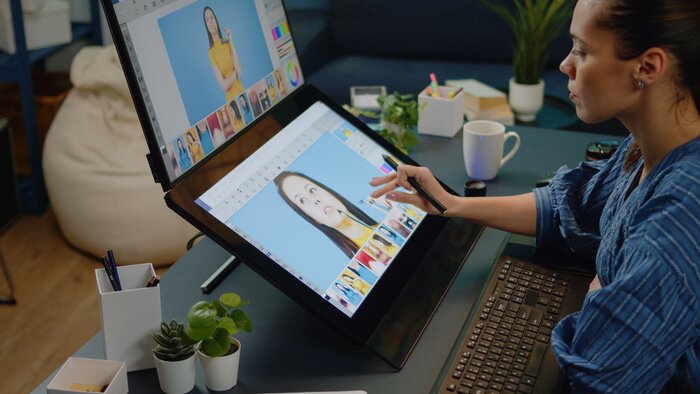
Affinity for iPad is the free design app that iPad owners have been waiting for since Canva made its desktop design suite free a year ago. Launched on 2 November 2026, Affinity for iPad packs four professional studios — sketching, vector drawing, photo editing and page layout — into a single app and a single file, so a project can travel from a rough Apple Pencil sketch to a print-ready document without ever leaving the tablet. The core tools cost nothing for individuals. You only pay if you want Canva’s AI features, and even then you pay through a Canva plan, not through a separate Affinity subscription. This guide explains exactly what Affinity for iPad includes, what it costs in the US, which iPads can run it, what is still missing at launch, and who should switch today — and who should wait.
Contents
- Affinity for iPad at a Glance
- What Is Affinity for iPad?
- The Four Studios in One App
- Sketch Studio: The Brand-New Part
- Vector Studio: Logos, Icons and Illustration
- Pixel Studio: Photo Editing and Retouching
- Layout Studio: Books, Magazines and Marketing
- Apple Pencil Support: Pressure, Tilt, Barrel Roll and More
- Canva AI Studio: The Only Paid Part
- Affinity for iPad Pricing in the US
- Which iPads Can Run Affinity for iPad?
- How to Get Started With Affinity for iPad, Step by Step
- File Formats: What Affinity for iPad Opens and Exports
- What Is Missing at Launch?
- Affinity for iPad vs Adobe’s iPad Apps
- Affinity for iPad vs Canva Itself
- Who Should Switch — and Who Should Wait
- Practical Tips for Your First Week
- Affinity for iPad FAQ
- The Verdict
Affinity for iPad at a Glance
If you only have sixty seconds, here is the whole story. Affinity for iPad is a free download from the App Store for individuals, released on 2 November 2026 — a day earlier than the 3 November date shown on its pre-order page. It combines sketching, vector design, photo editing and page layout in one app, and all four kinds of work live in the same .af file. You need a free Canva account to sign in, because Canva owns Affinity. The professional core tools are free, with no subscription and no watermark. The AI tools — Generative Expand, upscaling, noise reduction and a feature called Decompose Layer — require a paid Canva plan. The app is a 1.9 GB download and needs iPadOS 18 or later. Some desktop features, such as Books and macro recording, are not in the iPad version yet. For students, freelancers, illustrators and small-business owners who design on an iPad, Affinity for iPad is now the strongest free starting point available — provided your iPad is new enough to run it.
- Price: free for individuals; AI features need Canva Pro at $18 per month or $143.99 per year in the US App Store.
- Download size: 1.9 GB, requires iPadOS 18 or later.
- Studios: Sketch, Vector, Pixel and Layout, all in one .af file.
- Apple Pencil: full support for pressure, tilt, barrel roll, squeeze and hover on Apple Pencil Pro.
- File compatibility: imports Photoshop, Illustrator and InDesign files; exports JPEG, PNG, PDF, SVG, EPUB and InDesign files.
- Biggest catch: a free Canva account is required, and several desktop features are missing at launch.
What Is Affinity for iPad?
To understand why Affinity for iPad matters, you need a little history. Affinity began life as three separate, buy-once apps from a British company called Serif: Affinity Photo for photo editing, Affinity Designer for vector work, and Affinity Publisher for page layout. Designers loved them because they were powerful, polished and — unlike Adobe’s Creative Cloud — did not demand a monthly subscription. Canva acquired Serif in 2024, and on 30 October 2025 it merged the three desktop apps into a single, all-new Affinity app for Mac and Windows that was, in its words, completely free, forever. More than seven million people have signed up for the free desktop app since then, according to Canva. The one promise left hanging at the end of that announcement was two words: iPad coming soon.
Affinity for iPad is that promise delivered. The old separate iPad apps — Affinity Photo, Designer and Publisher for iPad — still exist, but the new app replaces them as the way forward: one download, one interface built from scratch for touch and Apple Pencil rather than shrunk down from a desktop screen, and one file format that carries a project through every stage. Canva says the iPad app offers the same pro-level power as the Mac app, and early coverage from 9to5Mac, Creative Boom and PetaPixel on launch day backs up the scale of the claim, even if the iPad version is not yet feature-identical to the desktop one. The honest way to describe Affinity for iPad is this: it is the desktop Affinity suite, rebuilt for a tablet, with a new sketching studio added and a handful of desktop features still to come.
Why does a free professional design app matter so much in 2026? Because the iPad has become a serious creative machine — Apple’s own chips now handle large RAW photos and complex vector files with ease — but the software pricing has not kept up with the hardware. A student with a $349 iPad and an Apple Pencil could previously face hundreds of dollars a year in app subscriptions before creating anything professional. Affinity for iPad removes that barrier. The tools that used to justify a subscription — layers, masks, vector curves, CMYK print output, RAW development — are now free for individuals. That changes who can afford to learn design properly, and it changes the calculation for freelancers deciding whether their next project needs an Adobe subscription at all.
The Four Studios in One App
The central idea of Affinity for iPad is that you should not have to export, convert or rebuild a project when you move from one kind of work to another. In the old world, you sketched in one app, traced the sketch into vectors in a second app, retouched a photo in a third, and laid everything out in a fourth — with a file conversion at every step. In Affinity for iPad, all four studios work on the same .af file, and you switch between them while the project stays open. A sketch stays live in the file, so you can build on it rather than tracing over a flattened copy. A photo you retouched in the Pixel studio can sit inside a Layout document without being re-imported. A vector logo drawn in the Vector studio can be dropped into a poster and resized without losing sharpness.
This matters more than it sounds, because every conversion between apps is a chance to lose something: a layer gets flattened, a font goes missing, a mask stops working, a color shifts. Keeping everything in one file removes those failure points, and it also removes the mental friction of deciding which app owns a project. For a freelancer juggling a logo, a social post and a brochure for the same client, that single-file workflow is the difference between a tidy afternoon and a folder full of half-finished exports. It is also the feature that makes Affinity for iPad feel like a genuine studio rather than a collection of tools bolted together.
Each studio has its own job, and the rest of this guide walks through them one by one. Sketch is where ideas start. Vector is where logos and illustrations become precise, scalable artwork. Pixel is where photographs get edited, retouched and composited. Layout is where everything comes together into multi-page documents. If you only ever use one studio, Affinity for iPad still works fine as a single-purpose app — but the real value shows up when a project passes through two or three of them.
Sketch Studio: The Brand-New Part
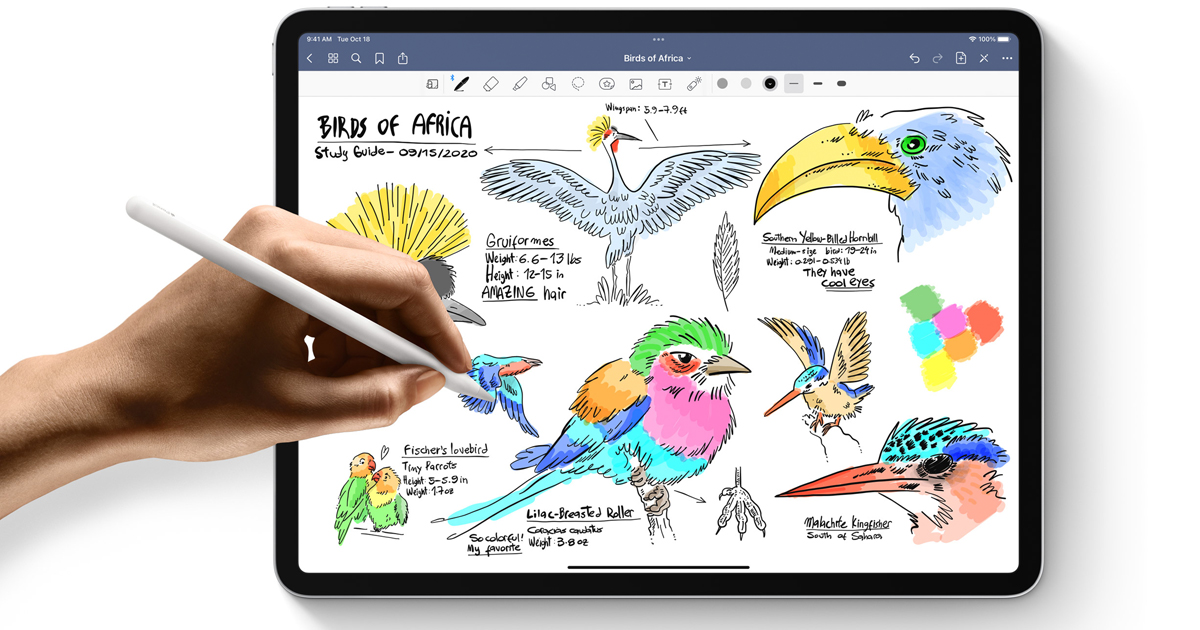
Sketch Studio is the one part of Affinity for iPad that has never existed in Affinity before, and it is clearly the feature Canva built the launch around. It is designed for the moment an idea first arrives: you pick up the Apple Pencil and draw, with pressure making a line thick where you press and soft where you tilt, exactly as a real pencil behaves. Affinity’s own pages list more than 350 editable brushes, and every brush can be shaped into the exact tool you need, with controls for size, texture, spacing and response to pressure. The interface is built for the iPad from scratch, so brush controls, color pickers and layer tools sit within thumb’s reach rather than in desktop-style menus.
Two Sketch Studio features deserve special attention. The first is Sketch to Shapes, which turns rough hand-drawn forms into clean, editable vector shapes. Sketch a wobbly circle, a rough arrow or a loose logo outline, and the tool converts it into proper vector geometry you can then refine with nodes and curves in the Vector studio. For logo designers and icon designers, this closes the gap between a paper-style sketch and a finished mark: the idea survives the transition instead of being redrawn from scratch. The second is the new Mask Tool, which follows tricky edges as you draw — hair, fur and other fine detail that used to demand painstaking manual masking. Creative Boom’s launch coverage singles out this tool for exactly that reason: masks around hair and fur are where amateur work usually gives itself away, and an edge-following mask tool is a genuine time-saver.
Sketch Studio also respects a simple truth about creative work: sketches are not finished art, and they should not be treated as disposable either. In Affinity for iPad, your sketches stay live in the file. You can return to a sketch weeks later, adjust a line, change a brush, or convert a different part of it into vectors, without starting over. For illustrators who iterate — and every working illustrator iterates — that live-sketch approach is more valuable than any single brush. It means the iPad can finally be the place where a project starts, not just the place where a finished project gets tweaked on the move.
Vector Studio: Logos, Icons and Illustration
Vector Studio is the part of Affinity for iPad that logo designers, brand designers and illustrators will live in. Vectors are artwork defined by mathematical curves rather than pixels, which means a logo drawn at the size of a postage stamp can be blown up to the side of a building without going blurry. That property is why every serious logo, icon set and brand system is built in vectors, and it is why Vector Studio matters far beyond hobby drawing. You build artwork from real curves with precise node control, combine shapes, apply gradients and strokes, and organize everything into layers and groups that stay editable.
For a freelancer, the practical test of Vector Studio is simple: can you take a client’s rough idea from Sketch Studio, turn it into a clean mark, present three variations, and export the winner as an SVG for a website, a PDF for a printer and a PNG for social media — all from the iPad? Affinity for iPad is built for exactly that sequence, and because the vector work lives in the same file as the sketch, you can jump back and adjust the original drawing if a client asks for a different feel. Icon designers get the same benefit at smaller scale: an icon system of twenty or thirty marks can be built, aligned and exported consistently, with grids and snapping keeping every icon on the same visual rhythm.
Illustrators should note one honest limit. Vector illustration on a tablet lives or dies by stylus precision, and while Apple Pencil Pro’s barrel roll — twisting the pencil to rotate a shaped brush — gives vector brushes a genuinely new dimension, fine node editing on a touch screen will always feel different from a mouse on a desktop. Affinity for iPad handles this well by letting you zoom deep into a curve and adjust nodes with the pencil, but if your work is heavy, node-by-node technical illustration, you may still prefer the desktop app for the final polish. For most logo and illustration work, though, the iPad version is now a complete tool rather than a companion app.
Pixel Studio: Photo Editing and Retouching
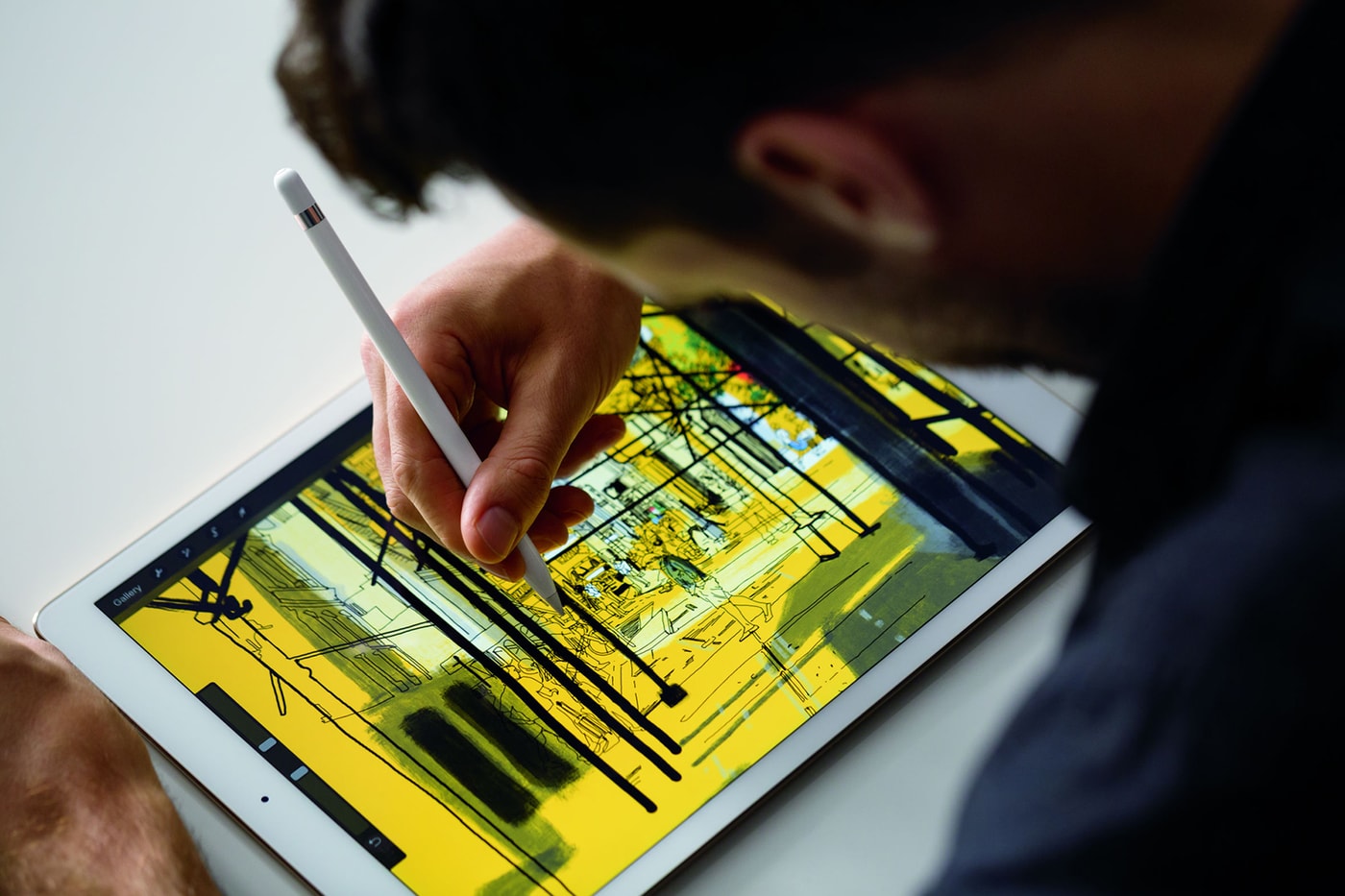
Pixel Studio is Affinity for iPad‘s photo editor, and it is where photographers and social-media creators will spend most of their time. It handles RAW files — the unprocessed sensor data from a proper camera — with non-destructive editing, which means your adjustments sit on top of the original image rather than baking into it. You can change exposure, recover shadows, adjust white balance and return to the original at any time. Retouching happens in real time, selections can be refined around difficult edges, and full composites can be built from multiple images with layers, masks and blend modes.
What makes Pixel Studio stand out against the many photo apps on the iPad is depth. Most iPad photo editors are excellent at quick, global adjustments — a filter here, a crop there — but they flatten your work or hide their layer systems. Affinity for iPad keeps the full professional stack: layers, masks, live filters, adjustment layers and precise selections, all editable after the fact. A photographer can develop a wedding shoot, retouch a portrait, composite a product shot and export print-ready files without touching a desktop. A content creator can cut out a subject, clean up a background, match colors across a set of images and keep every step reversible.
The AI features that sit on top of Pixel Studio — upscaling a low-resolution reference, reducing noise, adding motion blur and the Decompose Layer tool that splits a flat image into editable layers — are the paid part of the app, covered in the Canva AI Studio section below. Everything else in Pixel Studio, including the core retouching and compositing tools, is free. That distinction matters: you are not renting the ability to edit photos. You are getting a professional photo editor for free, with AI conveniences available as an optional extra.
Layout Studio: Books, Magazines and Marketing
Layout Studio is the quiet powerhouse of Affinity for iPad, and the one most likely to surprise people who think of the iPad as a sketching device. It creates multi-page documents — zines, lookbooks, photo books, brochures, magazines and marketing packs — with text and images flowing across pages, master pages and grids keeping everything consistent, and typography controls that treat type as a design material rather than an afterthought. Canva says the Layout studio handles documents from short brochures to 500-page books, with print-ready output.
For a small business, this is the studio that replaces a surprising amount of paid software. A cafe can design its menu, a photographer can lay out a client album, a band can produce a tour booklet, and a startup can build its pitch deck and one-pager in the same app that designed its logo. Master pages mean a header, footer or page number only needs setting once, and grids keep columns aligned across dozens of pages. Because the layout lives in the same file as the vector logo and the retouched photos, updating the logo updates it everywhere in the document — no re-exporting, no hunting for the latest version of an asset.
Print designers should check one thing before committing a commercial job to Layout Studio on iPad: the desktop features still missing at launch include Books, which is how very long documents are split into chapters on desktop. A 500-page book is possible, according to Canva, but the chapter-management workflow that desktop publishers rely on is not there yet. For brochures, magazines, lookbooks and marketing documents — the bread and butter of freelance layout work — Affinity for iPad is already complete. For a multi-chapter book, the desktop app remains the safer choice for now.
Apple Pencil Support: Pressure, Tilt, Barrel Roll and More
Affinity for iPad supports everything Apple Pencil Pro can do: pressure, tilt, barrel roll, squeeze and hover. Each of those capabilities maps to a real drawing behavior rather than a gimmick. Pressure controls line weight and opacity, so pressing harder lays down a darker, thicker mark. Tilt changes a brush’s angle, so shading with the side of a pencil tip feels natural. Barrel roll — twisting the pencil between your fingers — rotates shaped and calligraphic brushes, which matters enormously for lettering and ink work. Squeeze opens a quick menu without reaching for a toolbar, and hover previews a brush’s position and size before it touches the screen, which makes precise placement far easier.
Hover deserves a special mention because it solves a problem every tablet artist knows: the moment before a stroke lands is the moment you most need to see where it will go. With hover, Affinity for iPad shows you the brush outline as the pencil floats above the glass, so you can aim a line, a mask edge or a selection boundary before committing. Combined with the iPad’s high-refresh display, the result is the closest a tablet has come to the feel of drawing on paper — not identical, but close enough that the tool stops getting in the way of the work. If you are buying an iPad specifically for Affinity for iPad, the pencil matters as much as the tablet: a base iPad with a first-generation-style stylus will run the app, but the full barrel-roll and squeeze experience needs Apple Pencil Pro and a compatible iPad Pro or iPad Air.
Canva AI Studio: The Only Paid Part
AI has arrived in Affinity for iPad for the first time, through Canva AI Studio — and this is the part you pay for. The AI features available at launch are Generative Expand, which extends a background beyond the edges of an image; upscaling, which increases the resolution of a low-resolution reference or texture; noise reduction, which cleans up grainy photos; and Decompose Layer, which splits a flat image into editable layers. There are also AI touches such as adding motion blur to a still image. These tools unlock only with a Canva premium plan, which means the AI subscription is a Canva subscription, not an Affinity-specific one — the same plan also unlocks Canva’s own premium features on the web.
Whether the AI plan is worth it depends entirely on your work. Generative Expand is genuinely useful when a client sends a photo that is slightly too tight for a layout: instead of redesigning the page, you extend the background and keep the composition. Upscaling rescues old logos, scanned textures and low-resolution reference photos that would otherwise be unusable. Noise reduction saves shoots taken in poor light. Decompose Layer is the most interesting of the four, because it works backwards: given a flattened image, it attempts to separate it into layers you can edit individually, which can rescue files whose original layered versions are lost. None of these tools is essential to professional design — designers worked without them for decades — but each one saves real time on specific, recurring problems.
The important framing is what the paywall does not touch. Your brushes, vectors, layers, masks, RAW development, layout tools and exports all work without any payment. Canva’s model here is the opposite of the subscription trap users fear: the professional core is free, and the AI layer is an optional convenience. If you try Affinity for iPad and never pay a cent, you still have a complete design studio. That is worth stating plainly, because it is the single biggest reason this launch is good news for students and freelancers.
Affinity for iPad Pricing in the US
Affinity for iPad itself is free to download and free to use for individuals. There is no trial period, no watermark on exports, and no subscription required for the core studios. You do need a free Canva account to sign in, which costs nothing but does mean your Affinity use is tied to a Canva identity. The only money involved is the optional Canva plan that unlocks the AI features, and the US App Store prices reported on launch day are clear.
| Plan | Monthly (US) | Yearly (US) | What it unlocks in Affinity for iPad |
|---|---|---|---|
| Free (individuals) | $0 | $0 | All four core studios: Sketch, Vector, Pixel, Layout; full exports |
| Canva Pro | $18 | $143.99 | Everything free, plus Canva AI Studio: Generative Expand, upscaling, noise reduction, Decompose Layer |
| Canva Business | $25 | $250 | Everything in Pro, plus Canva’s business features for teams |
Two pricing notes are worth doing properly. First, the yearly Pro plan works out at about $12 per month, which is a third cheaper than paying $18 month by month ($143.99 against $216 over a year). If you know you will use the AI tools all year, the yearly plan is the rational choice; if you only need Generative Expand for one project, a single month is cheaper than a year of payments. Second, organizations and teams should check Canva’s education and non-profit terms separately — the free-for-individuals framing does not automatically cover every institutional use, and Canva’s own pages are the authority there. For an individual designer, though, the honest summary is simple: Affinity for iPad costs $0 unless you actively choose to add AI.
Compare that with the old way of buying design software, and the shift is stark. A professional design subscription historically cost hundreds of dollars a year, every year, forever — stop paying and the software stops opening your files. With Affinity for iPad, stopping payment for an AI plan costs you only the AI features; your files, your tools and your exports keep working. That ownership-like quality is exactly what made the original Affinity apps popular, and Canva has preserved it in the free model rather than replacing it with a rental.
Which iPads Can Run Affinity for iPad?
The requirements are straightforward but they will exclude older tablets, so check before you get excited. Affinity for iPad is a 1.9 GB download and requires iPadOS 18 or later. Launch-day reporting of the App Store listing puts the compatible range at iPad models starting with the seventh-generation base iPad, the third-generation iPad Air, the fifth-generation iPad mini, and the 2018 iPad Pro. In practice, that means most iPads sold in the last several years qualify, but an iPad that cannot update to iPadOS 18 cannot run the app at all.
Within that compatible range, performance will vary, and buyers should be realistic. A base iPad will run Affinity for iPad and handle sketching, vector work and moderate photo editing well. Large RAW files, complex multi-layer composites and 500-page layout documents will feel smoother on an iPad Air or iPad Pro with more memory and a faster chip. The app also notes performance improvements for Apple’s newest chips on desktop, and the same logic applies here: the heavier your files, the more you benefit from a Pro-class iPad. Storage matters too — a 1.9 GB app plus large .af files, RAW photos and exported print files will fill a 64 GB iPad quickly, so creators should favor at least 256 GB if they are choosing a tablet for this work.
One more compatibility note: the app supports Apple Vision Pro via visionOS in its listing, but the story that matters for almost everyone is the iPad itself. If your iPad runs iPadOS 18, download Affinity for iPad and try it — the free price means the only cost of testing is the download time and a few minutes of your evening.
How to Get Started With Affinity for iPad, Step by Step
Getting started takes about ten minutes, and most of that is the download. Here is the sequence that avoids the common stumbles.
- Check your iPad. Go to Settings, then General, then Software Update, and confirm you are on iPadOS 18 or later. If an update is offered, install it first — Affinity for iPad will not install on older versions.
- Download from the App Store. Search for Affinity, and look for the free app from Canva. The download is 1.9 GB, so use Wi-Fi rather than mobile data unless you have an unlimited plan.
- Create or sign in with a free Canva account. This step is mandatory — the app requires a Canva account even for the free tools. If you already use Canva, sign in with that account so your work stays in one place.
- Open a new document and pick a studio. Start in Sketch Studio if you are drawing, or open a photo in Pixel Studio if you are editing. Do not try to learn all four studios on day one; pick the one that matches today’s project.
- Try one complete mini-project. Sketch a simple shape, convert it with Sketch to Shapes, color it in Vector Studio, and export it as a PNG and an SVG. A finished export teaches more than an hour of menu browsing.
- Decide about AI later. Use the free tools for a week before judging whether Generative Expand, upscaling or Decompose Layer would actually save you time. If the answer is yes, a month of Canva Pro is a cheap experiment.
If you previously used the old separate Affinity iPad apps, your existing files remain usable, and the new app’s import support covers the standard formats those apps produced. Canva has positioned the unified app as the future, so new work belongs in Affinity for iPad rather than in the legacy apps, even if you keep the old ones installed during a transition period.
File Formats: What Affinity for iPad Opens and Exports
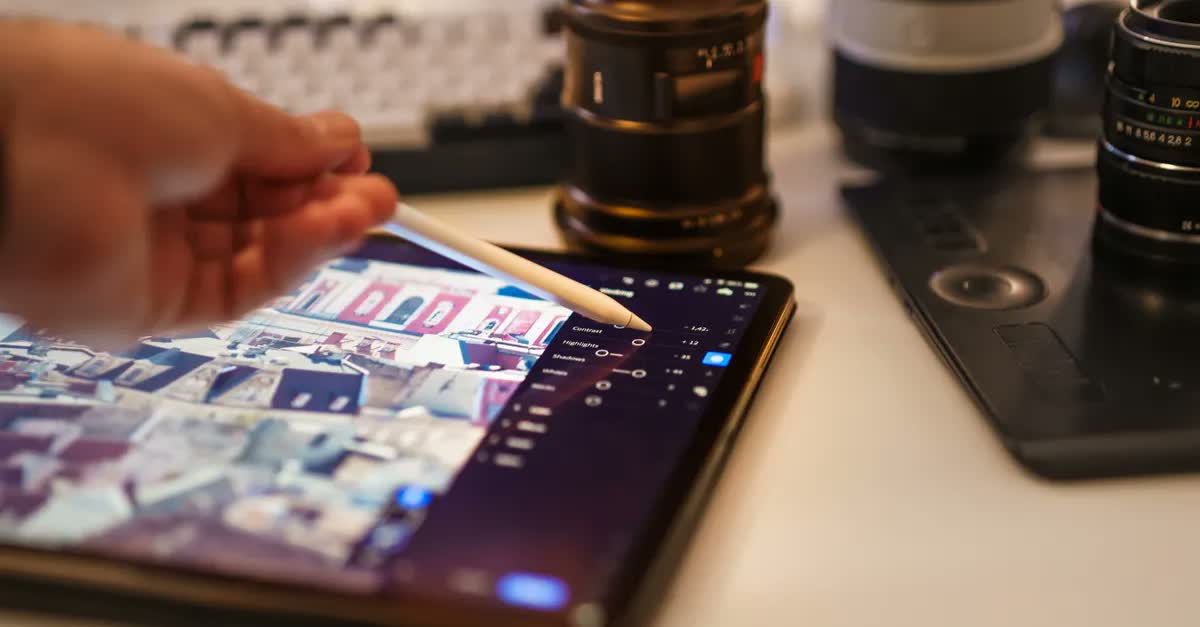
File compatibility is where many free apps quietly fail, so Affinity for iPad‘s list is worth reading in full. The app imports Photoshop (PSD), Illustrator (AI), InDesign (INDD and IDML), PDF and SVG files, among other common creative formats, with layers preserved where the format supports them. That means a client who sends a PSD does not force you back to a desktop: you can open it, edit it and send it back. A printer who asks for a PDF gets a proper print file, not a screenshot. A web developer who needs an SVG gets clean vector code.
Exports cover JPEG, PNG, PDF, SVG and EPUB, plus InDesign files for handoff to teams that still work in Adobe’s layout app. The honest caveat, flagged in launch coverage of Affinity’s own FAQ, is that some things flatten on import — Photoshop smart objects are the classic example. A smart object that was editable in Photoshop may arrive as a flat layer in Affinity, which is a limitation of translating between two different editing models, not a bug. The practical rule is simple: for new work, build in Affinity’s native format; for inherited work, open a copy, check that layers, masks and text survived, and only then commit to editing in Affinity for iPad.
One more format point matters for collaboration. Because Affinity for iPad shares the .af format with the desktop app, a file started on the iPad opens on a Mac or Windows machine with everything intact, and vice versa. A designer can sketch on the train, refine on a desktop at the studio, and present from the iPad at a client meeting, without ever converting. Files can also move straight into Canva from the app, which suits teams that use Canva for social templates and Affinity for the heavy design work.
What Is Missing at Launch?
No launch is complete, and Affinity for iPad is no exception. Affinity’s own pages name the desktop features that are not on iPad yet: Books, Batch processing, Data Merge, Quick Adjustments, the Info and Scope panels, macro recording, and Astrophotography Studio, with more features promised without dates. Each omission affects a different kind of user, so it is worth translating the list into plain language.
- Books matters to long-document publishers who split a book into chapters. Brochures and magazines are fine; multi-chapter book production should stay on desktop for now.
- Batch processing matters to photographers who apply the same edits to hundreds of images at once. Without it, large shoots need a desktop pass or patient repetition.
- Data Merge matters to anyone producing personalized documents — certificates, mailers, catalogues — from a spreadsheet. That workflow is desktop-only at launch.
- Macro recording matters to power users who automate repetitive edits. Its absence slows down high-volume retouching workflows.
- Quick Adjustments, Info and Scope panels, and Astrophotography Studio matter to specialists: color-critical work and night-sky photography lose some of their precision instruments on iPad for now.
None of these gaps affects the core promise — sketch, vector, photo and layout work for individuals — but they do define who should wait. If your daily work depends on any item on that list, keep the desktop app as your primary tool and treat Affinity for iPad as a mobile companion until the missing feature arrives. For everyone else, the launch version is already a complete studio.
Affinity for iPad vs Adobe’s iPad Apps
The comparison most readers want is against Adobe, because Adobe’s apps have defined professional design for decades. The honest version of that comparison has three parts: price, depth and ecosystem. On price, Affinity for iPad wins outright for individuals — free core tools against Adobe’s subscription model. On depth, Adobe still leads in a few specialist areas: its iPad apps connect to a vast plugin, stock and font ecosystem, and features like the missing Batch and Data Merge workflows exist in Adobe’s desktop tools today. On ecosystem, the answer depends on your clients: if every client sends PSD and AI files and expects them back in the same formats, Affinity’s import and export support covers the exchange, but a team deeply embedded in Adobe’s cloud libraries and shared assets will feel friction moving away.
The practical advice is not to frame this as an all-or-nothing switch. Many designers will run both: Affinity for iPad for personal projects, freelance work and anything where the client cares about the result rather than the tool, and Adobe where a client’s pipeline demands it. What has changed is the default. Until now, Adobe was the default because there was no free professional alternative on the iPad. From 2 November 2026, the default for a new designer is free — and Adobe has to justify its subscription against a $0 professional studio rather than against nothing.
Affinity for iPad vs Canva Itself
Since Canva owns Affinity, readers reasonably ask why both exist — and whether Affinity for iPad is just Canva with a different name. It is not. Canva is a template-driven design tool built for speed: pick a template, swap the text and images, publish. It is brilliant for social posts, presentations and quick marketing, and millions of non-designers use it daily. Affinity is a professional tool built for control: you draw the curves, build the masks, manage the layers and set the print specifications yourself. A Canva template gives you a good result in five minutes; Affinity for iPad gives you an original result that nobody else has, in exchange for skill and time.
The two tools complement each other rather than competing. A small business might design its logo and brand assets in Affinity for iPad, then hand those assets to a team member who produces daily social posts in Canva. A creator might edit a photo properly in Affinity’s Pixel Studio, then drop it into a Canva template for a quick story post. Because files move between the apps, that handoff is painless. If you only ever need templates, Canva alone is enough. If you want to design rather than decorate, Affinity for iPad is where that work happens.
For readers weighing the site’s other creative coverage, the same logic applies to AI image tools: an AI generator can produce a striking picture in seconds, but it cannot give you an editable brand system. Tools like the ones covered in our Gemini avatar sharing guide are wonderful for fast, fun visuals, while Affinity for iPad is where a visual idea becomes a precise, reusable, print-ready asset. The two approaches answer different questions, and a working creator will eventually use both.
Who Should Switch — and Who Should Wait
Switch today if you are: a student learning design, a freelancer building logos and social content, an illustrator who sketches on iPad, a photographer who edits on the move, or a small-business owner who designs their own marketing. For all of these users, Affinity for iPad replaces paid software immediately, with no loss of capability for everyday work. The free price removes the risk from trying: if it does not suit you, you have lost nothing but an evening.
Try it as a companion if you are: a desktop Affinity user, an Adobe user with client pipelines tied to Adobe formats, or a designer whose work mixes iPad sketching with desktop finishing. Use Affinity for iPad where it shines — sketching, on-the-move edits, client presentations — and keep the desktop for the finishing steps that need the missing features.
Wait if you are: a publisher producing multi-chapter books, a photographer batch-processing hundreds of images daily, or a production artist depending on Data Merge or macro recording. Those workflows are explicitly missing at launch, and switching before they arrive would cost you time rather than saving it. Revisit Affinity for iPad when Affinity announces those features — the app is free, so waiting costs nothing either.
A final group deserves a mention: parents and teachers. A free professional design app on a classroom iPad changes what a school can teach. Students can learn real vector drawing, real photo editing and real layout — the same disciplines professionals use — without a licensing budget. That educational effect may prove to be Affinity for iPad‘s most lasting impact, long after the launch-day headlines fade.
Practical Tips for Your First Week
- Learn one studio properly before touching the others. A week spent mastering Sketch Studio beats a week spent skimming all four. Depth first, breadth second.
- Set up a simple file habit. Name files by client and date, keep one .af file per project, and export a PDF or PNG the moment a version is client-ready. Good habits matter more in a single-file workflow, because everything lives in one place.
- Test the Apple Pencil settings on day one. Pressure curves and hover previews are personal — a setting that suits a lettering artist will frustrate a photo retoucher. Spend fifteen minutes tuning them before real work.
- Check imports before you promise a deadline. Open any client PSD or AI file, confirm layers and text survived, and only then commit to an edit in Affinity for iPad. A two-minute check prevents a painful surprise.
- Export early and often. Send yourself a PNG or PDF after each major stage. If a file ever corrupts or a client asks for an earlier version, those exports are your safety net.
- Skip the AI plan until you can name the job it does. Generative Expand for tight photos, upscaling for old assets, Decompose Layer for flattened files — if none of those describes a recurring problem in your work, the free tools are enough.
- Keep the desktop app in mind for print. For a critical print job, do a final check on desktop Affinity or with your printer’s proof, especially for color-critical work where the iPad lacks the Scope panels.
Affinity for iPad FAQ
Is Affinity for iPad really free?
Yes, for individuals. The core studios — Sketch, Vector, Pixel and Layout — are free, with no subscription, no trial expiry and no watermark. You need a free Canva account to sign in. Only the Canva AI Studio features require a paid Canva plan.
What does Affinity for iPad cost in the US?
The app itself costs $0. If you want the AI features, Canva Pro costs $18 per month or $143.99 per year in the US App Store, and Canva Business costs $25 per month or $250 per year. The yearly Pro plan works out at about $12 per month.
Which iPads run Affinity for iPad?
Any iPad running iPadOS 18 or later, starting from the seventh-generation base iPad, third-generation iPad Air, fifth-generation iPad mini and 2018 iPad Pro, according to launch-day App Store reporting. The download is 1.9 GB.
Do I need an Apple Pencil?
No, but sketching and precise vector work are far better with one. Apple Pencil Pro unlocks the full experience — pressure, tilt, barrel roll, squeeze and hover. A finger or a basic stylus works for layout and photo adjustments, but not for serious drawing.
Can Affinity for iPad replace Adobe?
For most individual and freelance work, yes — it opens PSD, AI and INDD files and exports the formats clients and printers need. Teams deeply tied to Adobe’s cloud libraries, and specialists needing Batch, Data Merge or macro recording, should keep Adobe or desktop Affinity for those workflows until the iPad app catches up.
What happens to the old Affinity iPad apps?
The old separate Photo, Designer and Publisher iPad apps still exist, but the unified Affinity for iPad app is Canva’s way forward. New work belongs in the new app, and its .af files also open in the desktop Affinity app.
Does Affinity for iPad work offline?
The core design tools work on the device, and launch coverage describes the app as working offline for its main editing work. You need an internet connection to sign in with your Canva account and to use the cloud-connected AI features.
What AI features does Affinity for iPad include?
Through Canva AI Studio: Generative Expand for extending backgrounds, upscaling for low-resolution images, noise reduction for grainy photos, Decompose Layer for splitting flat images into editable layers, and touches such as motion blur. All require a paid Canva plan.
The Verdict
Affinity for iPad is the most important free creative release on the iPad in years, not because it is flashy, but because it removes a barrier. A student, a freelancer or a small-business owner can now open a professional design studio on a tablet they already own, for $0, and produce work that is genuinely professional — a logo that scales, a photo that prints, a brochure that a print shop accepts. The four-studio, single-file design is the right architecture, Sketch Studio is a real addition rather than a relaunch gimmick, and the honest list of missing features is short enough that most users will never hit it.
The caveats are real but manageable: you need a Canva account, you need iPadOS 18, and a handful of desktop workflows are still missing. None of those should stop an individual designer from downloading Affinity for iPad tonight and trying one real project in it. If it fits your work, it will save you hundreds of dollars a year. If it does not, it cost you nothing to find out. That is a rare deal in professional software, and it is why this launch, announced on 2 November 2026, deserves the attention it is getting. For creators who also work with AI visuals on the move, our guides to on-device Mac AI tools and AI sales-deck design pair naturally with a tablet-first design workflow — the common thread is the same one Affinity for iPad embodies: professional power, without the professional price tag.