
AI Photo Animator is a new browser-based platform that turns a single still photograph into a short video with motion and sound, and its selling point is unusual: instead of locking you into one AI video engine, it puts models from Seedance, Kling, Wan and Hailuo side by side under a single account and credit balance. Launched on October 21, 2026 from Singapore, the tool lets you upload a picture, describe the movement in one sentence, and receive a short clip that starts from your original photo in about a minute or two. New accounts get 75 free credits at sign-up with no card required.
The photo-to-video category has exploded in 2026. Search interest in “photo to video AI” has climbed as models got dramatically better at faces, physics and natural movement, and creators on TikTok, Instagram Reels and YouTube Shorts now post AI-animated photos by the thousands every day. The problem, until now, has been choice fatigue: every model vendor wants you to buy its own subscription, and nobody knows in advance which engine will handle their particular photo best. This guide walks through what AI Photo Animator actually offers, how each of its four models compares, what the credits cost, how to get good results from your first generation, and where the honest limits sit.
What Is AI Photo Animator?
At its core, AI Photo Animator is a photo-to-video generator, also known as an AI image animator. You give it a still image, it hands back a short MP4 video in which the scene moves while the look of your photo — its colors, details and style — stays faithful from the first frame to the last. Supported models also generate native audio, so a portrait can come with a laugh, a landscape with wind and waves, and a dance clip with music, all created together with the picture.
What makes the launch interesting is not the idea itself — plenty of tools animate photos — but the way it is packaged. Four of the most-used video model families are available in one workspace: Seedance (ByteDance), Kling (Kuaishou), Wan (Alibaba) and Hailuo (MiniMax), with more than ten specific model options across them. Each generation shows its credit cost on the Generate button before you click, failed generations have their credits returned automatically, and every download is watermark-free — including videos made with the free starter credits. There is no software to install; the whole thing runs in a web browser.
The company behind it is AI Photo Animator, a Singapore-based team, and the service is available now at aiphotoanimator.ai. Because the product is only days old, much of the public detail comes from its October 21 launch announcement and the site’s own model and pricing pages — this article draws on those sources, and flags where a claim is the company’s own rather than independently verified.
How AI Photo Animator Works: The Four Creation Modes
The creation panel in AI Photo Animator offers four starting points. They sound similar but do genuinely different jobs, and picking the right one is the single biggest factor in getting a result you like.
Photo mode: describe who and what should appear
In Photo mode you can upload up to nine reference images — ten if you are using Wan 3.0 — and the AI builds a brand-new scene around the people or objects in them. The first frame does not have to match any of your photos; instead, the images act as references that tell the model who and what should appear. In your prompt you reference them directly (“image 1 is the woman in the red dress, image 2 is the beach at sunset”), and the engine inside AI Photo Animator composes the scene.
This mode is best when you want to put a character into a new place, keep a character or an outfit consistent across a series of clips, or drop a product into a fresh setting it was never photographed in. It is the mode that feels most like directing a small film from reference photos.
Frames mode: your photo becomes the exact first frame
Frames mode is the purist’s option. Your uploaded photo becomes the exact first frame of the video, and the AI only adds motion between that frame and — optionally — an end frame you supply. Nothing is re-imagined; the scene you photographed is the scene that moves.
This is the mode to use for old family photographs that must stay untouched, for portraits where any drift in facial identity would be a deal-breaker, and for smooth transitions between two images. If you want grandma’s face to turn toward the camera without grandma becoming a different person, this is where you do it.
Text mode and Video mode
The same panel also offers Text mode — a classic text-to-video generator for when you start from an idea rather than a photo — and Video mode, which works from existing video clips. The press announcement presents these as secondary options alongside the two photo modes; the photo modes are clearly the product’s heart, and the workflow this article focuses on.
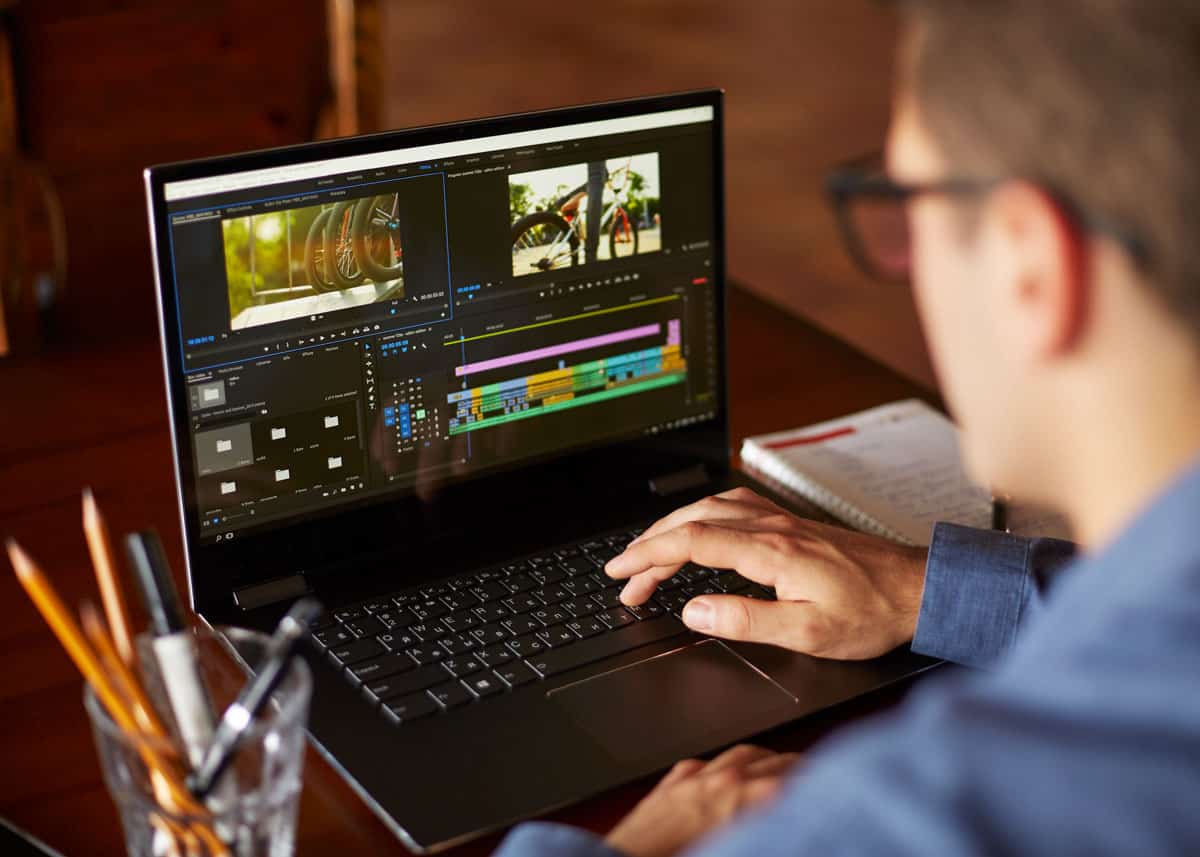
Behind all four modes sits the platform’s engine selector, which lists every available model with a short “what it does best” card. Generation takes about a minute, the clip renders, and you download the result as an MP4 — with sound where the model supports it. If a generation fails, the credits are refunded without you having to ask.
Every Model in AI Photo Animator, Compared
The headline feature of AI Photo Animator is its model wall: four major video-model families, each good at something different, all spendable from one credit wallet. Here is what each one actually is, based on the platform’s own model pages and the vendors’ published specifications as of October 2026.
Seedance (ByteDance): the all-rounder, and the cheapest way to test
Seedance models are pitched as the platform’s workhorses. Seedance 2.0 Mini is the cheapest option on the wall — the one the site itself recommends for low-cost tests, drafts and quick experiments. Seedance 2.0 Fast is positioned as the fastest and most affordable way to make everyday social clips, with native audio. Seedance 2.0 is described as the best all-rounder: stable, detailed, with true-to-life physics and support for multi-image references. And Seedance 2.5, the newest, supports clips up to 30 seconds with native audio.
Seedance’s broader reputation backs this up: ByteDance’s models are among the most-used image-to-video engines in the world, and Seedance 2.5’s 30-second length is genuinely unusual — most photo animators cap out at 5 to 15 seconds. If your plan is to iterate a lot before committing to a final render, starting drafts on Seedance 2.0 Mini and upgrading to 2.5 for the keeper is exactly the workflow the platform seems designed around.
Kling (Kuaishou): cinematic camera work and 4K detail
Kling has been a heavyweight in this category for a while, and the platform carries two of its newest variants. Kling 4.0 supports clips up to 30 seconds with native audio, reference images and keyframe control. Kling 3.0 is sold on cinematic camera moves and crisp 4K detail. If you want your product photo to get a slow, glossy, commercial-style camera sweep — the kind of shot that makes a sneaker look like a movie prop — Kling is the family the site points you toward.
Wan (Alibaba): long clips at low cost, and the most references
Alibaba’s Wan family is the value pick. Wan 3.0 generates long clips up to 30 seconds at low cost with native audio, and it accepts up to 10 reference photos — more than any other model on the platform. Wan 3.0 Prime promises the same engine with a more cinematic, polished quality. For multi-shot scenes where you want several photos to stay consistent, or for long travel-clip animations on a budget, Wan is the natural first try.
Hailuo (MiniMax): the faces specialist
MiniMax’s Hailuo models are the platform’s pick for people. Hailuo 2.3 is highlighted for natural acting and facial expressions from a single photo — blinks, smiles, subtle head turns. Hailuo 2.3 Standard is the budget version for quick drafts. MiniMax H3 renders expressive characters in 2K with stereo sound, and Hailuo 02 Pro aims for realistic physics and motion in 1080p. If your photo is a portrait and the whole point is what the face does, start here.
A quick cheat sheet for choosing a model inside AI Photo Animator:
- Testing a prompt cheaply: Seedance 2.0 Mini
- Portraits and facial expressions: Hailuo 2.3 or MiniMax H3
- Cinematic product shots and camera moves: Kling 3.0 or Kling 4.0
- Long clips (up to 30 seconds): Seedance 2.5 or Wan 3.0
- Multi-image scenes with many references: Wan 3.0 (up to 10 images)
- Everyday social clips, fast: Seedance 2.0 Fast
The honest caveat: each model’s “best at” card is the vendor’s own framing. In practice, the only reliable way to know which engine handles your photo best is AI Photo Animator’s own suggested method — run the same photo through two models and keep the better take. That is precisely what the single-wallet design makes cheap and easy.
Viral Trend Templates for TikTok and Reels
If prompt writing sounds like work, AI Photo Animator maintains a library of viral AI video effects built around the dances, memes, sports moments and movie-style scenes circulating on social media. Each effect comes with its model and prompt already configured; you supply one clear photo, and the trend does the rest. Current templates include the Nicole Kidman Dance, AI Moonwalk, AI Broom Riding, Bad Times AI, the Zoolander AI Stare, Ozil Goal and AI Basketball Dunk — and the company says new effects are added within days of a trend taking off.
Clips made through the effects library run 5 to 15 seconds, which suits TikTok, Instagram Reels and YouTube Shorts perfectly, and most effects include music or sound. This is clearly where AI Photo Animator expects its volume: the trend-chasing creator who wants to post today’s meme before tomorrow’s arrives, with zero learning curve.
One note of caution applies to the whole category, not just this tool: animated photos of real people — especially the kind of “place your face in a trending dance” effects this library sells — only work ethically when you have permission. The platform’s own terms ask users to upload only photos they have the right to use and to get permission before putting another person in a video. The deepfake-adjacent misuse of these tools is exactly what got older products into trouble, so take that line seriously.
What Photos You Can Animate (and Which Work Best)
The platform officially supports portraits and selfies, scanned prints, pets, products, landscapes, and anime or painted artwork. Here is how each holds up in practice, based on the platform’s own guidance.
Portraits and selfies: a wink, a head turn, a dance
Faces are the bread and butter of the whole category. A single selfie can blink, smile, turn to the camera or join a dance trend, and models like Hailuo 2.3 are tuned specifically for this. The platform’s advice is worth repeating: front-facing photos with visible eyes animate most naturally, while very small, blurry or heavily shadowed faces are more likely to drift into someone slightly different. For identity-critical work, use Frames mode so the first frame is your exact photo.
Old photos: grandparents who smile again
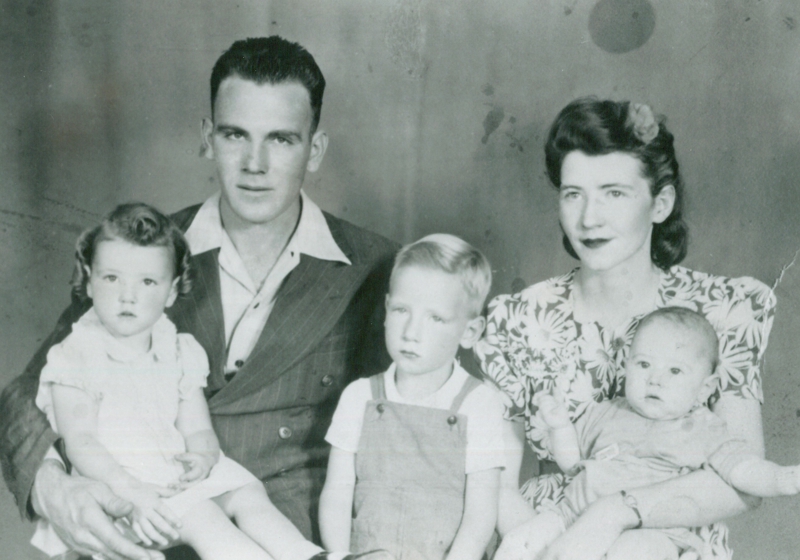
Scanned family prints are the use case with the most emotional weight. An old photograph can show a grandparent turning toward the camera, a wedding couple swaying, a child laughing. Black-and-white and sepia scans animate well, though the platform suggests restoring torn or faded photos first — a sharper scan produces more believable motion. This is also where Frames mode matters most: the point is that it is your photo moving, not an AI’s reinterpretation of it.
Pets: ears up, tail going
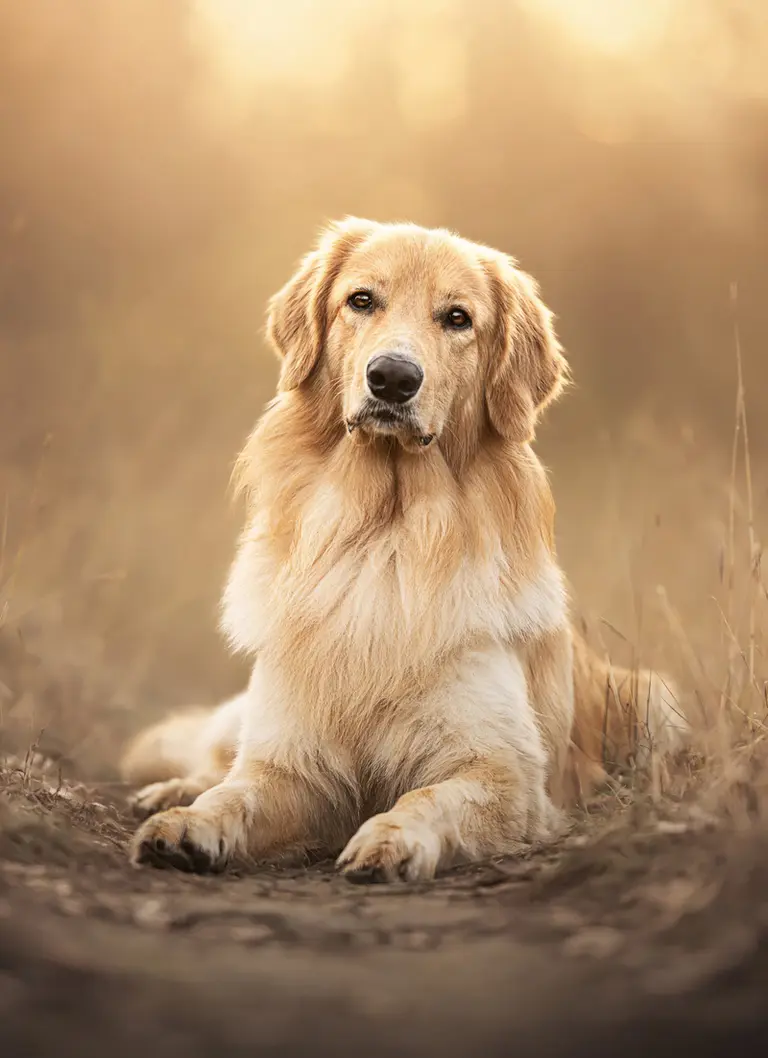
Pets are among the most-shared AI animations online for good reason — a dog that perks its ears or a cat that turns its head reads as pure joy. Animal faces are somewhat forgiving for the models since viewers are less sensitive to identity drift than with human faces, but they are strict about anatomy: six-legged dogs are a meme for a reason. Describe one clear action and keep the camera static to give the model the least room to invent.
Landscapes and travel: drifting clouds, rolling waves
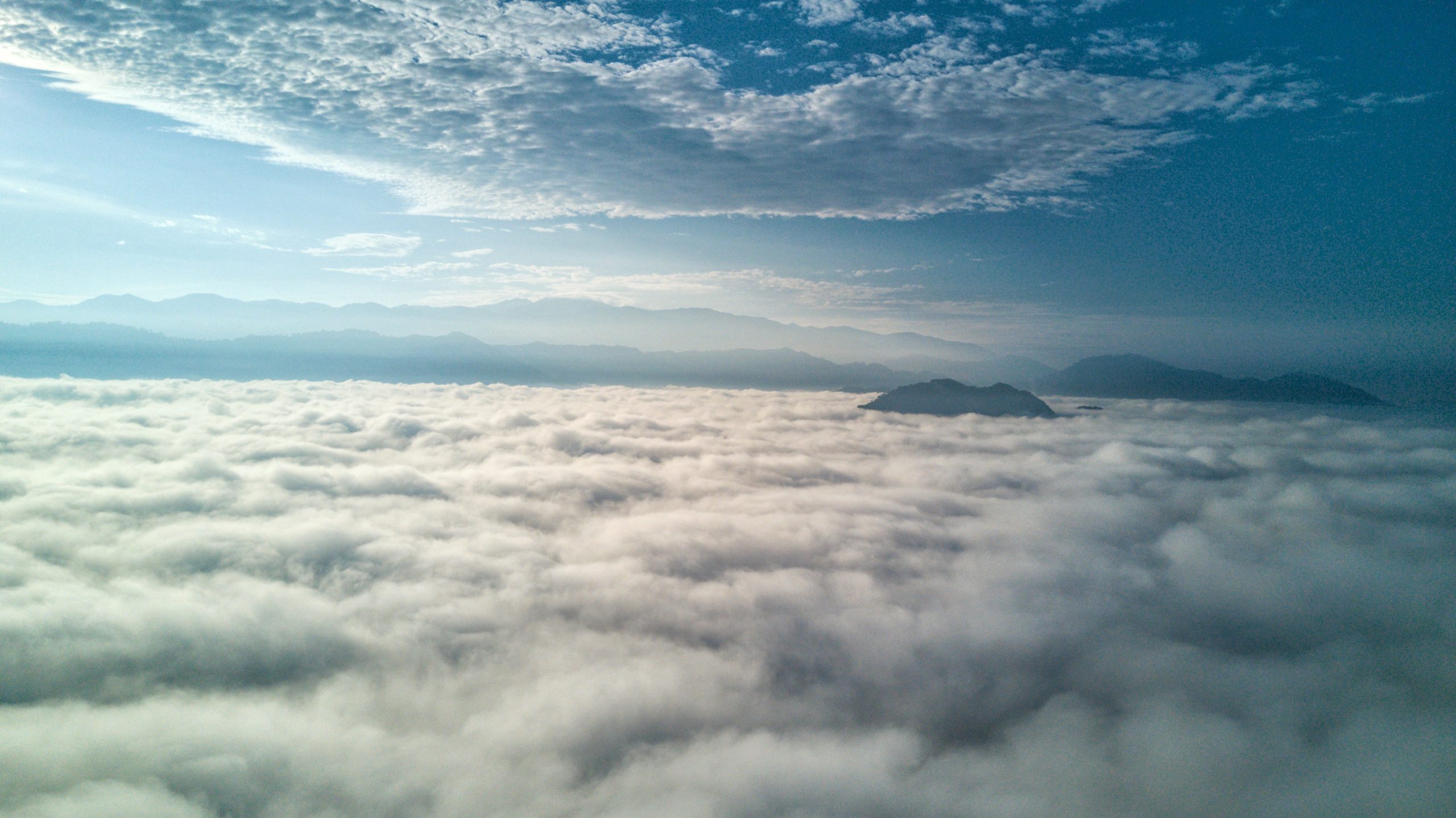
Travel shots are where photo animation is closest to magic and furthest from controversy. Clouds drift across a skyline, waves roll on a beach, city lights flicker in a night shot — all from a photo you already took. No faces to warp, no likeness issues, and the results read as cinematic rather than uncanny. For creators who post travel content, animating stills from a trip is one of the cheapest ways to get motion into a feed.
Products: ads without a shoot
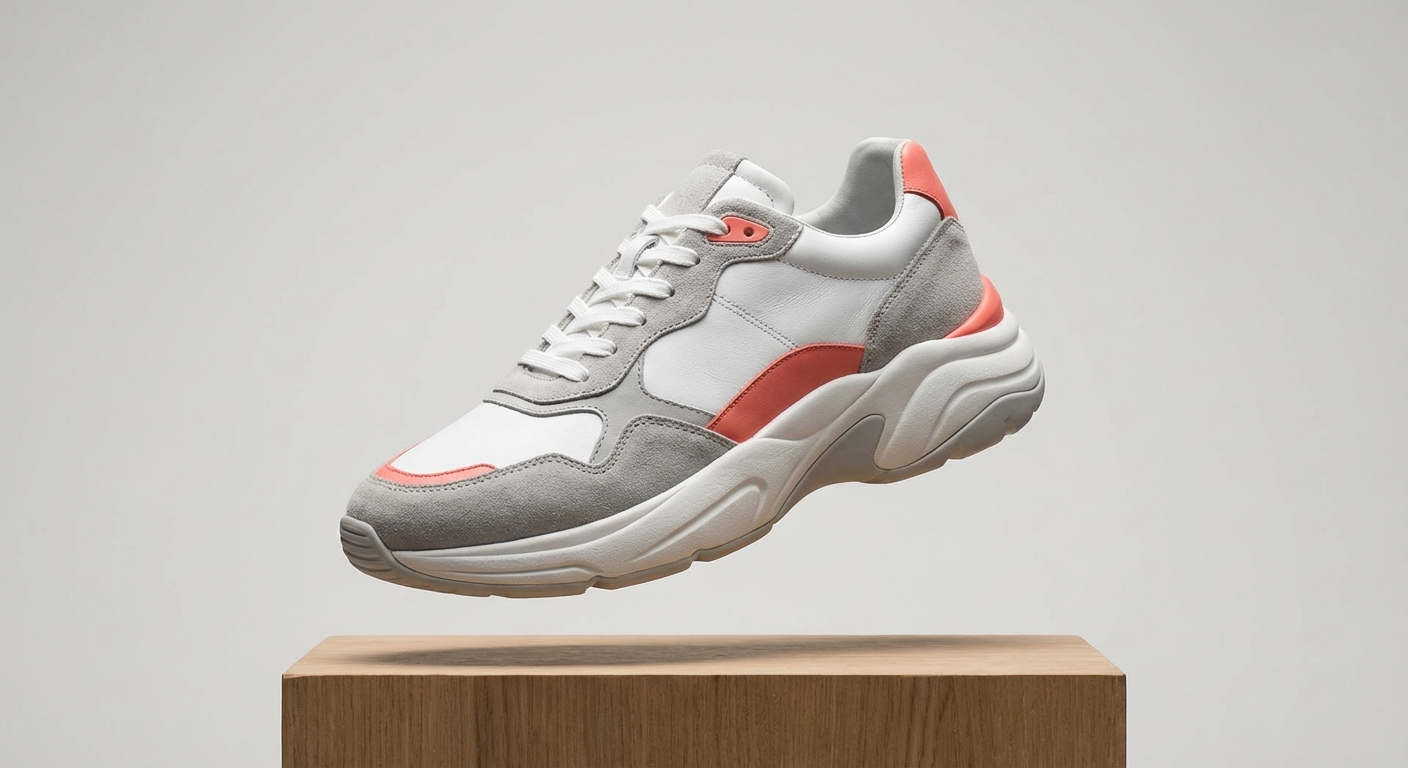
A slow spin, a splash, a shaft of light across a sneaker — product animation is the quietly commercial side of the tool. Small brands can turn a static product photo into a social ad without hiring a photographer, and the paid plans include commercial use of generations (subject to the platform’s terms and each model’s conditions). Pair this with the AI ad creative wave and you have a genuinely useful pipeline for small ecommerce teams.
Anime and art: characters that breathe
Illustrated characters, anime frames and paintings animate in their original style — a character blinks and breathes while the linework stays put. Fan-art communities and indie game developers get a lot of mileage from this: one illustration becomes a living title screen or a social teaser.
AI Photo Animator Pricing: Credits, Plans and the Free 75
Pricing is credit-based, and the platform’s transparency here is one of its stronger selling points. New accounts receive 75 free credits on sign-up, with no credit card required — enough, by the company’s own description, to animate a photo with its most affordable model and explore the wall. Monthly and yearly plans are available for heavier users, alongside one-time credit packs for people who generate in bursts rather than steadily.
Three details of AI Photo Animator’s pricing matter in practice:
- You see the price before you click. Every generation shows its exact credit cost on the Generate button before you start. There is no guessing whether the 30-second 4K render will eat your whole balance.
- Failed generations are refunded. Credits come back automatically if a video fails — a small thing that removes a lot of the anxiety of experimenting.
- Free credits are not second-class. Watermark-free downloads apply to videos made with free credits too, which is unusual; several competing platforms watermark free-tier output.
AI Photo Animator’s paid plans unlock commercial use of your generations, subject to the platform’s terms and each underlying model’s conditions — check those before using clips in client work or paid ads, since the underlying vendors (ByteDance, Kuaishou, Alibaba, MiniMax) each carry their own terms. Exact plan prices live on the platform’s pricing page and can change with a product this new; the free 75-credit trial is the honest way to find out what a generation actually costs in practice before spending anything.
How to Animate Your First Photo: A Step-by-Step Walkthrough
The whole flow takes a few minutes, in the browser, with nothing to install.
- Upload a photo. Drop in a JPG, PNG or WebP. Clear, well-lit, front-facing faces give the most natural results; old scans and pet photos work fine too. The site does not publish a maximum upload size in its FAQ, so keep originals sensibly sized.
- Describe the motion in one sentence. “She smiles and slowly turns to the camera” beats a paragraph of directions. One main action works better than a list of moves; if you want camera motion, add it as a separate instruction such as “slow push-in.”
- Pick a model, length and aspect ratio. Start cheap: a 5-second clip on Seedance 2.0 Mini to test your prompt, then re-run the keeper on a higher-quality model. Match the aspect ratio to the destination — 9:16 for TikTok and Reels, 16:9 for YouTube, or keep the photo’s own framing to avoid cropping heads and hands.
- Check the cost and generate. The credit price is displayed before you click. In about a minute your photo moves; if it misfires, the credits come back and you can adjust the prompt.
- Download the MP4. Finished videos download as watermark-free MP4 files, ready to post, with sound where the model supports it.
Four tips from the platform’s own guidance round this out: start short and cheap before committing to long renders; restore damaged old photos before animating them; keep backgrounds simple, because busy backgrounds can warp when the camera moves; and when in doubt, ask for a static camera so the subject gets all the attention.
AI Photo Animator vs the Alternatives
Photo animation is a crowded field, and it is worth understanding where AI Photo Animator sits among the options. Our best AI video generator 2026 roundup covers the category leaders in depth; here is the short version of the competitive map as of October 2026.
Single-model specialists like Kling’s own app, Hailuo/MiniMax’s own site, or Luma’s tools give you the deepest access to one vendor’s models — including their newest betas and flagship settings. The trade-off is the one this platform was built to answer: five subscriptions to compare five engines. If you already know you only ever want Kling 4.0, the aggregator buys you nothing.
Other multi-model platforms exist. DomoAI bundles Seedance with its own models and a history panel that carries clips between tools; Pictory’s photo-to-video flow offers Pixverse and Veo 3.1 with clear per-model credit math; several smaller sites offer similar aggregators. AI Photo Animator’s distinctive mix is four top model families (not one vendor plus house models), the trend-effects library that ships new templates within days of a TikTok trend, and the no-watermark free tier.
Full video suites like HeyGen’s new prompt-to-scene model or Google’s Flow aim at a different job: generating scenes and presenters from scratch rather than animating your existing photos. If your workflow starts from a camera roll rather than a blank canvas, the photo animator category — and AI Photo Animator in it — is the right shelf.
The honest differentiator to watch is which models stay current. An aggregator is only as good as its newest engine; the platform launched with Seedance 2.5, Kling 4.0 and Wan 3.0, which are the current flagships as of late October 2026. If the wall keeps updating as vendors ship, the one-wallet pitch stays strong. If it stalls, you are paying a middleman for last season’s models.
Pros and Cons: An Honest Assessment
What stands out:
- Four leading model families under one account and one credit balance — no juggling five subscriptions to find the best engine for your photo.
- 75 free credits with no card required, and watermark-free downloads even on the free tier.
- Credit cost shown before every generation, with automatic refunds on failures.
- Trend-effects library that adds new templates within days of a TikTok or Reels trend.
- Up to 30-second clips, up to 4K resolution, and native audio on supported models.
- Frames mode, which keeps your exact photo as the first frame — the identity-safe way to animate portraits and old photos.
Where to be cautious:
- The product launched on October 21, 2026 — days ago. Public information about AI Photo Animator is thin, there are no independent reviews yet, and most of what is known comes from the company’s own materials.
- Model quality cards (“best at faces,” “cinematic”) are vendor and platform framing, not independent benchmarks; your mileage will vary by photo.
- Commercial use depends on the paid plans and each underlying model’s terms, so read the fine print before client work.
- Responsible-use questions — permission for animating other people’s photos — apply to the whole category, and the trend-effects library sits closest to the edge.
- As with any aggregator, the value depends on the model wall staying current as Seedance, Kling, Wan and Hailuo ship new versions.
Who Should Try It — and Who Should Skip It
Try it if you are a TikTok or Reels creator who wants to ride AI trends without prompt-engineering; if you sit on a camera roll of portraits, pets or travel shots you would like to bring to life; if you run a small brand and want product animations without a shoot; or if you are simply curious which of the four major video models handles your photos best and do not want to buy four subscriptions to find out.
Skip it for now if you need a deep, single-model workflow with flagship controls and betas (go to the vendor’s own app); if you need guaranteed commercial terms in writing for client work (verify the model-level terms first); or if you want long-form video rather than 5-to-30-second clips — in which case a full video generator is the better tool. For the AI ad pipeline angle, it is also worth reading our Cuttable AI ad generator coverage from earlier today.
Frequently Asked Questions About AI Photo Animator
What is AI Photo Animator?
AI Photo Animator is a browser-based AI image animator that turns a still photo into a short video. Upload a picture, describe the motion in one sentence, and one of four AI video model families — Seedance, Kling, Wan or Hailuo — generates realistic movement while keeping the original look of your photo.
Is AI Photo Animator free?
It is free to start: new accounts get 75 free credits on sign-up with no credit card required, enough to animate a photo with the platform’s most affordable model. After that you can buy credits or subscribe to a monthly or yearly plan. Downloads are watermark-free even on the free tier.
How do I animate a photo with AI Photo Animator?
Upload a JPG, PNG or WebP photo, write a one-sentence motion prompt such as “she smiles and waves,” choose a model, clip length and aspect ratio, check the credit cost shown on the Generate button, and click. Your MP4 video is ready in about a minute.
Which AI Photo Animator model should I choose?
For cheap tests, Seedance 2.0 Mini. For portraits and facial expressions, Hailuo 2.3 or MiniMax H3. For cinematic camera moves and 4K product shots, Kling 3.0 or 4.0. For clips up to 30 seconds, Seedance 2.5 or Wan 3.0. For many reference images, Wan 3.0 supports up to 10. When unsure, run the same photo on two models and keep the better take.
Can I use AI Photo Animator videos commercially?
Paid plans include commercial use of your generations, subject to the platform’s terms and each model’s conditions. Read the terms before using clips in ads or client work, and only upload photos you have the right to use.
Does the animated video have sound?
Yes, on models that support it: supported engines generate ambient sound and voices together with the video — laughter, footsteps, music — and you can turn audio off where the model allows.
Will my photo look different after animating?
In Frames mode your video starts from your exact photo and keeps its look, colors and details. Clear, well-lit photos work best; heavy blur or extreme angles make results less stable. In Photo mode the AI builds a new scene around your references, so expect more reinterpretation.
AI Photo Animator is one of the more interesting launches of October 2026: not because photo animation is new, but because the one-account-four-engines packaging finally treats model choice as something ordinary creators should be able to do. The 75-credit free trial makes it nearly risk-free to test — start with your strongest photo, run it on two models, and let the results decide.