
Granola dictation arrived on 29 October 2026, and it changes the maths of voice typing overnight: the meeting-notetaker company Granola now lets any Mac user speak instead of type, in any app, with no word limit and no extra charge. If you have ever rationed a free dictation allowance, skipped dictating a long email because typing felt safer, or paid $15 a month for unlimited voice input, this launch is aimed directly at you. This guide covers how it works, what it costs, how it stacks up against Wispr Flow, what happens to your voice data, and the one shortcut clash to fix on day one.
Table of Contents
- What Is Granola Dictation?
- How Granola Dictation Works
- How to Set Up Granola Dictation on Mac
- Granola Dictation Pricing
- Granola Dictation vs Wispr Flow
- Granola Dictation vs Built-In Alternatives
- Granola Dictation Privacy
- The Fn Key Clash
- Who Should Use Granola Dictation
- Tips for Accurate Results
- Limitations to Know
- Verdict
- FAQ
What Is Granola Dictation?
Granola dictation is the free voice typing feature that the meeting-notetaker company Granola launched on 29 October 2026. It turns spoken words into polished, formatted text anywhere on a Mac where you can place a text cursor: an email draft, a document, a chat window, a search box, or a prompt field inside an AI chatbot. You hold down the Fn key, speak naturally, and Granola cleans up the rough edges of your speech before it inserts the finished text.
The headline is deliberately simple, and it is the reason this launch travelled so fast. Granola announced the feature with the line “Unlimited words, for free”, and said it is available on every Granola plan without any limits. There is no separate dictation subscription to buy, no weekly word allowance to watch, and no credit card step before you try it. If you already use Granola for meetings, dictation simply appears inside the same app. If you do not, a free Granola account is enough to get started.
That generosity is also a competitive move, and understanding the move helps you judge whether the offer will last. Granola built its name — and its $1.5 billion valuation — on an AI meeting notetaker that captures a call from your own device rather than sending a visible bot into the meeting. Wispr, valued at $2 billion, built its name on dictation, then added a meeting notetaker of its own in August 2026. Each company has now built the other company’s flagship product. TechCrunch framed Granola’s launch exactly that way: the meeting-notetaker company had arrived in dictation, months after the dictation company had arrived in meetings.
This guide explains what Granola dictation actually does, how to set it up, what it costs, how it compares with Wispr Flow and Apple’s built-in dictation, what happens to your voice data, and where the feature still falls short. Every price and limit below is stated as reported at the end of October 2026, because free tiers in this market change quickly, and you should check Granola’s current pricing page before making a long-term decision on any tool.

How Granola Dictation Works
The workflow is intentionally boring, which is a compliment. Good dictation should disappear into the work you were already doing, and Granola dictation is designed around a single gesture you repeat hundreds of times a day without thinking about it.
The Fn Key Workflow
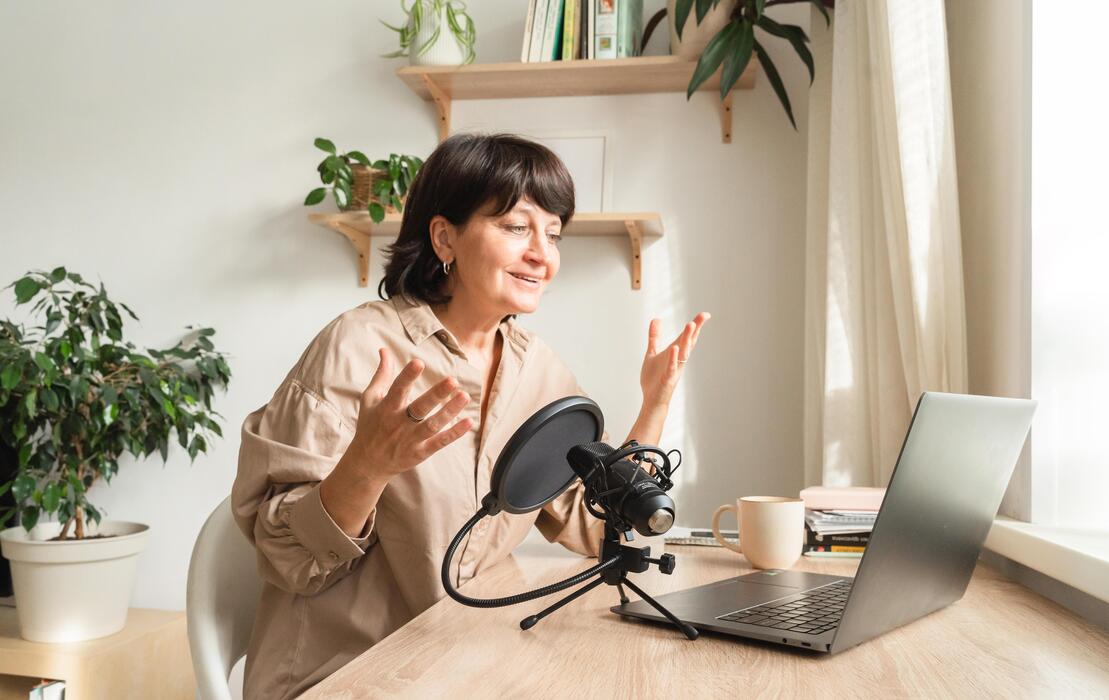
First, you place your cursor wherever you want text to appear. Then you press and hold the Fn key on your Mac and start speaking. Granola listens, transcribes your speech, and tidies it up — removing filler words, adding punctuation, and splitting your words into paragraphs where your pauses suggest a break. When you release the key, the cleaned text lands exactly where your cursor was blinking.
The clean-up step matters more than the transcription step. Raw speech-to-text output is usually a single breathless run of words, complete with “um”, repeated words, and false starts. Granola’s pitch is that you speak the way you normally speak and receive text that reads as if you had typed it carefully. Its product page makes the speed claim explicit: writing four times faster, based on speaking at 160 words per minute against typing at 40 words per minute. That arithmetic is the company’s own illustration, not an independent measurement, but the direction of travel is familiar to anyone who has dictated a long email: most people speak far faster than they type.
Granola Dictation Works in Any App
Because Granola dictation inserts text at the system level rather than living inside one application, it works across all apps. The practical uses stack up quickly once you stop thinking of dictation as a single-purpose tool:
- Email replies: dictate a full reply in Gmail or Apple Mail instead of typing it, then glance over the result before sending.
- Documents and notes: draft in Google Docs, Notion, or Apple Notes by speaking a first draft, then edit by keyboard.
- Messages and chat: answer Slack messages, WhatsApp Web chats, and Teams messages without switching to your phone keyboard.
- AI prompts: speak a detailed prompt into ChatGPT, Claude, or Gemini, including the context and constraints you would normally shorten because typing them is tedious.
- Forms and search: dictate longer search queries and form entries, especially on a laptop where the trackpad slows you down.
The AI-prompt use case deserves emphasis. One of the quiet frustrations of working with chatbots is that short prompts get short answers, while the detailed prompts that get better answers take the longest to type. Dictation removes that friction. Speaking a two-minute brief with examples, constraints, and the exact output format you want is suddenly cheaper than typing a one-line question, and the quality of the answer often improves with it.
How to Set Up Granola Dictation on Mac
Setting up Granola dictation takes a few minutes, and most of that time is macOS permissions rather than anything Granola-specific. Dictation needs to hear your microphone and insert text into other apps, so macOS will ask you to approve both.
Step 1: Install Granola and Sign In
Download the Granola app for Mac and sign in with a free account. Dictation is included on all plans, so there is no paid upgrade step before you can try it. If you already use Granola for meeting notes, update the app to the latest version and dictation should be available inside it.
Step 2: Approve Microphone and Accessibility Access
Open System Settings, grant Granola microphone access so it can hear you, and grant the accessibility permission it needs to insert text into other applications. If dictation appears to listen but no text arrives, the accessibility permission is almost always the missing piece. Remove and re-add it once, then try again.
Step 3: Confirm the Fn Key Shortcut
By default, Granola dictation uses the Fn key. Press and hold it, speak a test sentence, release it, and check that formatted text appears. If you also run Wispr Flow or another dictation app, read the conflict section below before you settle on a shortcut: two apps fighting over the same key is the most common first-week problem.
Step 4: Run a One-Minute Test
Dictate a real email reply, not a test sentence. Include a name, a number, a date, and a short list, because those are the things dictation gets wrong most often. Then edit the result by keyboard. That single test tells you more about whether dictation fits your work than any review can, because accuracy on your voice, your vocabulary, and your accent is what actually matters.
Granola Dictation Pricing: Free, Unlimited, and the Catch to Watch
The pricing story for Granola dictation is refreshingly short: dictation itself costs nothing extra and carries no word limit. Granola said the feature is available for all plans without any limits, and its announcement repeated the point in plain language — unlimited words, for free.
That does not mean Granola as a whole is free. The company’s meeting-notetaker plans still apply to meetings: a free Basic plan with limited history, a Business plan at around $14 per user per month, and an Enterprise plan at around $35 per user per month, based on recent published pricing. Dictation sits outside that structure. You can use unlimited dictation on the free plan, and paying for Business or Enterprise buys you meeting features — longer history, team sharing, admin controls — not a better dictation allowance.
There is one honest caveat, and it applies to every “free unlimited” launch in this market. Free tiers change. A company can introduce limits later, move a feature behind a paid tier, or redefine “unlimited” with a fair-use policy. Nothing in Granola’s launch announcement suggests such a change is planned, but if dictation becomes central to your daily work, keep an eye on the pricing page and keep a backup tool installed. The switching cost for dictation is low — it is one keyboard shortcut — so you are never locked in the way you would be with a full meeting platform.

Granola Dictation vs Wispr Flow: The Head-to-Head
The natural comparison for Granola dictation is Wispr Flow, because the two products now overlap almost exactly: both offer system-wide dictation and both offer a meeting notetaker. The differences are in pricing structure, platform coverage, and what each company is building toward.
Price: Unlimited Free vs a Weekly Allowance
This is where Granola dictation currently wins on paper. Granola’s dictation is free with no word limit on every plan. Wispr Flow’s free plan, by contrast, is limited to around 2,000 dictated words per week on desktop, with a lower allowance on mobile, and unlimited dictation requires Flow Pro at $15 per user per month, or $12 per month billed annually at $144 per year. For someone who dictates heavily — a writer, a salesperson living in email, a founder answering messages all day — that difference alone is worth real money: a year of Wispr Pro costs $144, while Granola’s dictation costs $0.
The comparison cuts the other way on meeting notes. Wispr’s paid plans bundle its Notetaker with higher meeting limits, while Granola’s free plan restricts meeting history even though dictation is unlimited. If your main need is meeting notes rather than dictation, compare the full plans, not just the dictation line.
Platforms: Mac Now, Windows and Mobile Coming
At launch, Granola dictation works on Mac only. Granola said iOS and Windows versions will arrive soon, and its product page extends that promise to Android as well. Wispr Flow, by contrast, already runs on Mac, Windows, iPhone, and Android. If you work across a Windows PC and a Mac, or you dictate on your phone, Wispr is the usable option today and Granola is a promise. Platform coverage is the single biggest reason not to switch yet, and it is worth waiting for Granola’s Windows release before recommending it to a mixed-device team.
Different Companies, Different Bets
TechCrunch’s launch coverage drew a useful distinction between the two companies’ strategies. Granola is focused on meeting-related automation and notetaking: dictation is an extension of capturing what you say at work. Wispr is building its own models through a research lab exploring new human-computer interfaces: dictation is the core product, and the interface itself is the research bet. Neither strategy is obviously right, but they predict different futures. Expect Granola to keep deepening the meeting workflow — briefs, follow-ups, and cross-meeting memory — while Wispr keeps pushing the dictation experience itself, including accuracy, latency, and custom vocabulary.
Granola Dictation vs Wispr Flow at a Glance
| Feature | Granola dictation | Wispr Flow |
|---|---|---|
| Dictation price | Free, unlimited words | Free up to ~2,000 words/week on desktop; Pro $15/month or $144/year for unlimited |
| Platforms at launch | Mac only; iOS, Windows, Android coming soon | Mac, Windows, iPhone, Android |
| Activation | Fn key | Fn key by default (customisable) |
| Meeting notetaker | Core product; free plan has limited history | Added August 2026; higher limits on paid plans |
| Company valuation | $1.5 billion | $2 billion |
| Best for | Mac users who already take meeting notes in Granola | Heavy dictators on any platform, including Windows and mobile |

Granola Dictation vs Built-In and Other Alternatives
Wispr is not the only alternative, and for many readers the honest question is whether Granola dictation beats the dictation already on their computer. Apple’s built-in dictation on macOS is free, works offline for many languages, and requires no new account. It is also noticeably rawer: it transcribes what you said, filler words and all, and leaves the formatting to you. Granola’s advantage is the clean-up layer — punctuation, paragraph breaks, and filler removal — plus the fact that it shares an app with your meeting notes.
Other voice apps have converged on the same bundle. Fireflies, Speechify, and Monologue all combine meeting capture with dictation-style features now, as TechCrunch noted in its launch coverage. The market has moved from single-purpose tools to all-in-one voice assistants, and the practical question for a buyer is no longer “which dictation app” but “which voice bundle already holds my meetings, my notes, and my daily typing”. If your meetings already live in Granola, adding free dictation in the same app is a much smaller decision than adopting a brand-new tool.
For completeness, note the specialist alternative for privacy-conscious users. Some dictation tools process audio entirely on your own device, so nothing you say leaves your computer. Granola dictation is a cloud service: your speech is sent for transcription and processing. If your work involves legally privileged, medical, or otherwise sensitive dictation, an on-device tool may be the right choice even if it costs money, and you should check your employer’s policy before dictating confidential material into any cloud tool.
Granola Dictation Privacy: What Happens to Your Voice
Privacy is where Granola dictation needs a careful, honest paragraph, because dictation is more intimate than meeting notes in one specific way: it can capture anything you say in any app, including passwords, personal messages, and offhand remarks you never intended to keep.
First, the reassuring part. Granola’s meeting product is designed around privacy by default: notes are private unless you share them, meeting audio is not retained after transcription, and the company states that conversation data is never used to train AI models. Independent analysis of the new dictation feature reports the same training protection for dictation: providers do not train on your dictations. That is the right policy, and it is worth verifying in Granola’s current privacy documentation before dictating sensitive work.
Second, the part to understand clearly. Dictation is processed in the cloud, and independent analysis reports that transcription runs through a speech-to-text provider — AssemblyAI — rather than entirely on your Mac. That means a second company handles your voice audio on every dictation, even though Granola remains the company you have the relationship with. The same analysis reports two design details worth knowing: dictation reads the text around your cursor to help spell names correctly, skipping password fields, and a short correction window after dictation lets the system learn from names you fix. Both features can be turned off in settings if you prefer that your surrounding text is never read.
Third, the meeting-notetaker context matters. Granola captures meeting audio from your own device without a bot joining the call, which keeps the participant list clean but puts the disclosure burden on you. A proposed class action from July 2026 targets exactly that design, so the practical rule is simple: tell people when you are recording, every time, even when no bot announces it. Dictation itself does not raise that issue — you are dictating your own words — but the same app’s meeting feature does, and new users often enable both on day one.
The Fn Key Clash: If You Already Use Wispr
The most entertaining launch problem with Granola dictation is also the most practical. Both Granola and Wispr Flow use the Fn key by default. If you run both apps, pressing Fn can trigger double dictation: both tools listen, both transcribe, and both try to insert text. Users reported exactly that within days of launch, and Wispr emailed its users with steps to disable voice typing in Granola to avoid the clash.
The fix is straightforward. Pick one dictation app and disable dictation in the other, or remap one of them to a different shortcut. Granola includes a list of rival dictation apps inside its settings, with links to each app’s shortcut settings, which is a refreshingly honest piece of product design. If you are testing Granola before deciding whether to cancel Wispr, disable Wispr’s shortcut first, test Granola for a week, and only then cancel the subscription — not the other way around.

Who Should Use Granola Dictation — and Who Should Not
Granola dictation is an easy recommendation for a specific group of people, and a “wait” for everyone else. The dividing line is your device and your existing meeting tool.
Best For
- Mac users who already use Granola for meetings: dictation is free, unlimited, and inside an app you already trust. There is no reason not to enable it.
- Heavy email and document writers: if you write long replies, reports, or first drafts, speaking them will save real time every day, and the unlimited allowance removes the counting anxiety of a capped free plan.
- AI power users: dictating detailed prompts with examples and constraints is one of the highest-value uses of any dictation tool, and it costs nothing here.
- People with typing strain or accessibility needs: voice input reduces keyboard load, and a free unlimited tool lowers the barrier to trying it properly rather than rationing words.
- Students and early-career workers on a budget: $0 for unlimited dictation beats a $15-per-month subscription when the money comes out of your own pocket.
Not Yet Ideal For
- Windows, iPhone, or Android users: dictation is Mac-only at launch. Wait for the promised Windows and mobile releases, or use Wispr Flow today.
- Offline workers: cloud dictation needs an internet connection. If you dictate on planes or in low-connectivity places, an on-device tool serves you better.
- Highly sensitive dictation: legal, medical, or confidential business dictation may belong in an on-device tool or a product your organisation has explicitly approved.
- People who need deep customisation today: custom vocabularies, snippets, and team dictionaries are more mature in paid dictation products that have sold them for years.
Tips to Get Accurate Results from Granola Dictation
Dictation accuracy is mostly a matter of habit, not technology. A few practices reliably improve results with Granola dictation and with every competing tool.
- Speak in complete thoughts, not single words. Dictation engines use context to disambiguate homophones like “their” and “there”. Short fragments give them nothing to work with.
- Say punctuation when it matters. “Comma”, “full stop”, and “new paragraph” still help, especially in lists, addresses, and numbers.
- Spell out names and unusual terms the first time. If Granola mishears a client name, correct it immediately so the correction learning can use it.
- Dictate the draft, edit by keyboard. The fastest workflow is speaking a rough version and then editing it like any other draft, rather than trying to produce perfect prose by voice alone.
- Check numbers, dates, and names before sending. These are the highest-risk errors in any transcript, and they are the ones a reader will notice first.
- Use a decent microphone. A laptop’s built-in microphone works in a quiet room, but a headset or a USB microphone improves accuracy noticeably in a noisy office or a shared workspace.
- Turn off the rival shortcut. If you also run Wispr Flow or Apple dictation on the same key, disable one of them before you judge Granola’s accuracy — double insertion looks like an accuracy problem when it is really a shortcut problem.
Granola Dictation Limitations to Know Before You Switch
No launch-day feature is complete, and Granola dictation has clear limits worth stating plainly. First, platform coverage: Mac only at launch, with Windows, iOS, and Android promised but not shipped. Second, the feature is in beta, which means behaviour and limits can change, and occasional misfires should be expected. Third, cloud processing means no offline dictation and a data-handling chain that includes a transcription provider, which some organisations will not accept.
Fourth, Granola’s clean-up is a general-purpose formatter, not a specialist: it will not learn a large custom dictionary, expand snippets, or apply team-wide terminology rules the way mature paid dictation products do. Fifth, the free-unlimited offer is a launch position, not a contract: if Granola later caps dictation or moves it to a paid tier, heavy users will face a switching decision. None of these limits makes the feature a bad choice today, but together they explain why the right advice for most people is “try it free on your Mac, keep your current tool until the Windows and mobile versions arrive”.
Verdict: Is Granola Dictation Worth Trying?
Yes, with one condition: you use a Mac. Granola dictation takes a genuinely useful capability — speak naturally, receive clean formatted text anywhere — and removes the two barriers that kept most people from trying it: price and word limits. For Granola’s existing meeting users it is a free upgrade to an app they already open every day. For new users it is the cheapest serious way to find out whether dictation fits their work, because the experiment costs nothing and the shortcut takes a day to learn.
The strategic picture is just as interesting as the feature. Voice AI companies spent 2025 building focused apps that did one thing well. In October 2026 they are all building each other’s products, and the winner will be the bundle that holds the most of your spoken work — meetings, notes, and now everyday typing.
Granola’s bet is that meeting context is the anchor: the app that already knows what was decided in your last meeting is the natural home for the email you dictate about it afterwards. Wispr’s bet is that dictation quality itself is the anchor. Both bets are reasonable, and the free-unlimited offer is Granola’s way of getting you to test its bet before you pay for anyone else’s.
If you dictate on Windows or on your phone, wait. If you dictate on a Mac, install Granola, disable any competing Fn-key shortcut, and dictate your next three long emails by voice. By the third one you will know whether typing just became the slow way to write.
Keep Reading: More Voice and Productivity AI on Tool Minds AI
If Granola dictation has you thinking about voice tools more broadly, these guides cover the neighbouring pieces: our ElevenLabs SFX v3 explainer looks at AI sound effects for creators, our Gemini Business Hub guide covers Google’s small-business AI bundle, and our Tencent WorkBuddy explainer examines the AI office agent handling billions of workplace tasks.
Granola Dictation FAQ
Is Granola dictation really free?
Yes, at launch. Granola announced dictation as “unlimited words, for free” on 29 October 2026, available on all plans without limits. You need a free Granola account, but dictation itself carries no extra charge and no word allowance. Check the current pricing page before relying on the offer long-term, because free tiers can change.
Which platforms does Granola dictation support?
Mac only at launch. Granola said iOS and Windows versions will arrive soon, and its product page lists Android as coming soon as well. The meeting notetaker itself is available more widely, but dictation is Mac-first.
Is Granola dictation better than Wispr Flow?
On price, yes: unlimited and free beats a 2,000-word weekly free allowance and a $15-per-month Pro plan. On platform coverage, no: Wispr already runs on Mac, Windows, iPhone, and Android. On meeting notes, compare the full plans, because Granola’s free plan limits meeting history while Wispr’s paid plans raise meeting limits. The best choice depends on your device and whether meetings or dictation matter more to you.
Does Granola train AI models on my dictations?
Granola states that conversation data is never used to train AI models, and independent analysis of the dictation feature reports the same protection for dictations. Note that transcription is processed in the cloud through a speech-to-text provider, so your audio passes through a provider’s systems even though it is not used for training. Check Granola’s current privacy documentation for the exact wording before dictating sensitive material.
Does Granola dictation work offline?
No. Like most modern dictation tools, Granola dictation processes speech in the cloud, so it needs an internet connection. If you need offline dictation, use Apple’s built-in macOS dictation or an on-device specialist tool instead.
Why am I getting double text when I press Fn?
You almost certainly have two dictation apps using the same shortcut — usually Granola and Wispr Flow. Disable dictation in one app, or remap one shortcut, and the doubling stops. Granola’s settings include links to rival apps’ shortcut settings to make this easier.