
If you have ever generated a 3D model with AI, you know the heartbreak. The character is almost perfect: the pose is right, the armour looks great, the proportions finally work — but the helmet is wrong. Or there is a strap on the shield that should not be there. Or the creature has one ear too many. Until now, fixing one small detail meant either regenerating the entire model and hoping the rest survived, or opening Blender and spending your evening pushing vertices around by hand.
Meshy Edit changes that equation. Launched on 16 October 2026 by the AI 3D company Meshy, it is a new editing mode powered by a purpose-built in-house AI model. It lets you select part of an existing 3D model and describe the change in plain English. Type “remove the hat” and the hat disappears — while every other part of the model stays exactly as it was. Each edit takes about a minute and costs 20 credits.
In this Meshy Edit review, we walk through how it works, who it is really for, what it costs in credits, how to get the best results from it, and where its honest limits lie — so you can decide whether it deserves a place in your 3D workflow.
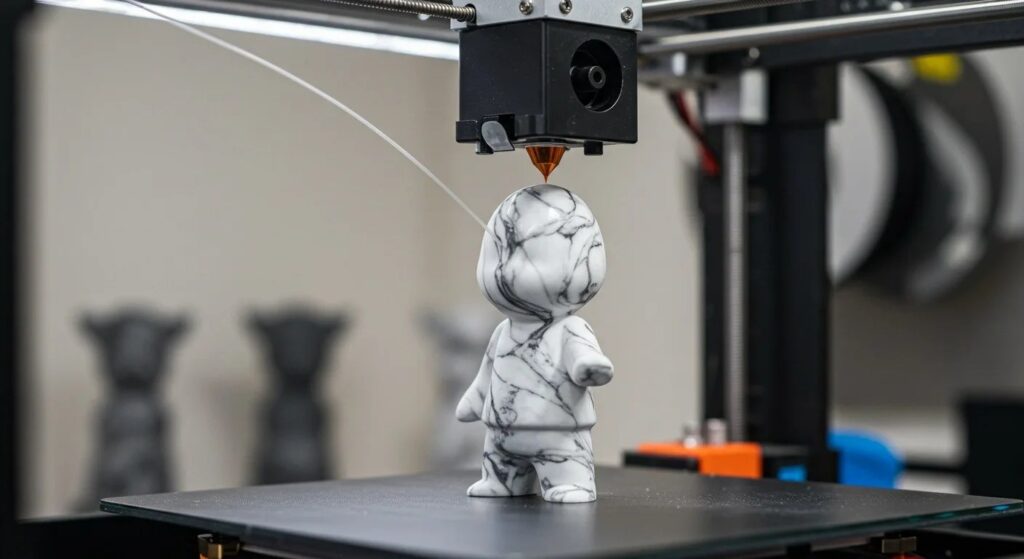
Table of Contents
- What Is Meshy Edit?
- How Meshy Edit Works Under the Hood
- How to Use Meshy Edit: A Step-by-Step Guide
- Meshy Edit Pricing: What One Edit Really Costs
- Which 3D Models Does Meshy Edit Support?
- Who Should Use Meshy Edit?
- Meshy Edit Limitations: An Honest Look
- Meshy Edit Tips: Getting the Best Results
- Meshy Edit vs the Alternatives
- Meshy Edit FAQ
- Final Verdict: Is Meshy Edit Worth It?
What Is Meshy Edit?
Meshy Edit is a selective 3D-editing feature from Meshy, the AI 3D generation company founded by Ethan Hu, who holds a PhD from MIT. Meshy turns text and image prompts into ready-to-use 3D assets for games, film and 3D printing, and it has grown into one of the biggest names in the space: more than 15 million registered users and over 3,000 companies and educational institutions worldwide.
The company has momentum behind it. In July 2026 Meshy raised nearly $400 million in a Series B round at a $1.5 billion valuation — the largest funding round to date in AI 3D — and in September 2026 it became the first AI 3D company to surpass $100 million in annual recurring revenue. Consumer spending data backs that up: in a16z’s seventh Top 100 Gen AI Consumer Apps report, released 5 October 2026, Meshy placed 31st by observed US monthly consumer card spending, making it the only AI 3D company on that revenue ranking.
Meshy Edit is the company’s newest in-house foundation model, and it is built around one specific frustration: targeted fixes. Before this feature existed, AI 3D generation was essentially all-or-nothing. A generation either came out right or it did not, and any change meant rolling the dice again. Meshy Edit turns that loop into a surgical operation — keep 95% of the model, change 5% with a sentence.
How Meshy Edit Works Under the Hood
The workflow is deliberately simple. You open an existing model, mark the region you want to change with a Lasso or Brush tool, write a short description of the change, and hit generate. Roughly a minute later you get a brand-new model with the change applied — and your original is kept untouched, so you can compare, retry or edit the new version again.
The Lasso is the faster of the two tools: draw a loop around a part on screen and Meshy selects the whole part’s mesh, including the front, sides and back, so you do not need to rotate the model to catch every face. The Brush lets you paint over visible surfaces to refine the selection. Made a mistake? The Lasso Eraser deselects by looping, the Eraser deselects by painting, and Clear All wipes the selection entirely. You do not need a pixel-perfect selection — Meshy Edit cleans up the edges automatically after you submit.
Selection is optional, too. If you skip it entirely, Meshy Edit treats your description as a whole-model edit. And for cases where words are not enough, you can attach up to five reference images to steer the result.
How to Use Meshy Edit: A Step-by-Step Guide
The whole flow is: enter Edit, select an area, describe the change, generate, and keep your new model. Here is how it plays out in practice.
Step 1: Open Edit on a Model You Generated in Meshy
In the Print module — Meshy’s workspace for getting a model ready for 3D printing — Edit is the opening card under Post-Processing and also the main button in the Editing Bar. In the standard model viewer, it is the main button in the Editing Bar. Either path drops you into the same editing workspace.
Step 2: Select the Part You Want to Change
Start with the Lasso: draw a loop around the part you want to alter and it selects the entire part’s geometry. Then switch to the Brush to paint visible surfaces and tidy the edges. The selection does not have to be exact — Meshy Edit cleans up boundaries automatically — but a reasonable selection gives the model a clearer target. If you want the change applied everywhere, just leave the selection empty.
Step 3: Describe the Change in Plain Language
Write it the way you would say it to a colleague: “add a small top hat”, “remove the strap on the shield”, “replace the helmet with a horned helmet”. Short, concrete descriptions work best. You can also attach up to five reference images (20 MB each) — useful when the change is a specific style, texture or object you can show rather than describe. If you are generating reference art, a modern AI image generator can help you produce them quickly.
Step 4: Generate and Retry
The edit runs in the background, so you can leave the page and get notified when it is done. Each edit costs 20 credits and usually finishes in about a minute. If an edit fails, the credits are refunded automatically — and one-tap Retry reloads your selection and description so you can rerun it without redoing the setup.
Step 5: Keep Going — Download or Send to Print
Your original model is always preserved. The new model can be edited again with another round of Meshy Edit, downloaded in your preferred format, or sent directly from Meshy to slicer software for 3D printing. Meshy supports sending straight to Bambu Studio, Snapmaker, Flash Studio and xTool Studio — a detail that shows how seriously the company takes the creator-to-printer pipeline.
Meshy Edit Pricing: What One Edit Really Costs
Meshy runs on a credit system, and Meshy Edit is priced at 20 credits per edit. To understand what that means in dollars, look at the plan ladder:
- Free — $0/month: 100 monthly credits, roughly five generations or edits per month, 10 downloads per month of Meshy-4 models, one task in queue with low priority, no credit card required. The catch is the licence rather than the quota: free-plan outputs are released under CC BY 4.0, which permits commercial use only with attribution to Meshy. Paid plans transfer full ownership of what you generate.
- Pro — $20/month: 1,000 credits per month (about 50 edits or generations), unlimited downloads including Meshy 7 and 7.1, 10 concurrent tasks at high priority, private assets with full commercial rights, API and plugin access, plus 500+ animation presets.
- Premium — $40/month: 3,000 credits per month (roughly 150 edits), everything in Pro, plus higher throughput for busy months.
- Ultra — $100/month: 8,000 credits per month (around 400 edits), the maximum individual credit allowance.
New Pro, Premium and Ultra subscribers get 50% off the first month, and annual billing saves roughly 20% versus month-to-month. Team and Enterprise plans (Studio and up) exist for studios that need shared credits and centralized billing.
Two credit realities matter for budgeting. First, credits reset on the 1st of each month and do not roll over — use them or lose them. Second, the free tier gives you about five Meshy Edit operations per month, so it is a genuine trial but not a production pipeline. At 20 credits an edit, a Pro subscriber paying $20 effectively pays about $0.40 per targeted edit — cheap compared with the hours a Blender session would cost, though third-party comparisons note that a full textured generation runs cheaper per model on some rival platforms.
Which 3D Models Does Meshy Edit Support?
At launch, Meshy Edit works with high-poly models generated with Meshy 6 and Meshy 7.1, including Ultra 2K assets. If your model has a texture, Meshy automatically switches it to its untextured version for editing — the geometry is what gets modified.
There are boundaries. Ultra 4K models, low-poly models and uploaded models are not yet supported. That last one is the most important caveat: you cannot import a model from another tool (or your own sculpt) and run Meshy Edit on it. The feature currently only operates on assets created inside Meshy’s own generation pipeline. Given how quickly Meshy ships features, expanded support looks likely — but today, it is Meshy-native only.
Who Should Use Meshy Edit?
Meshy Edit is not for everyone, but for several groups it solves a real, daily annoyance:
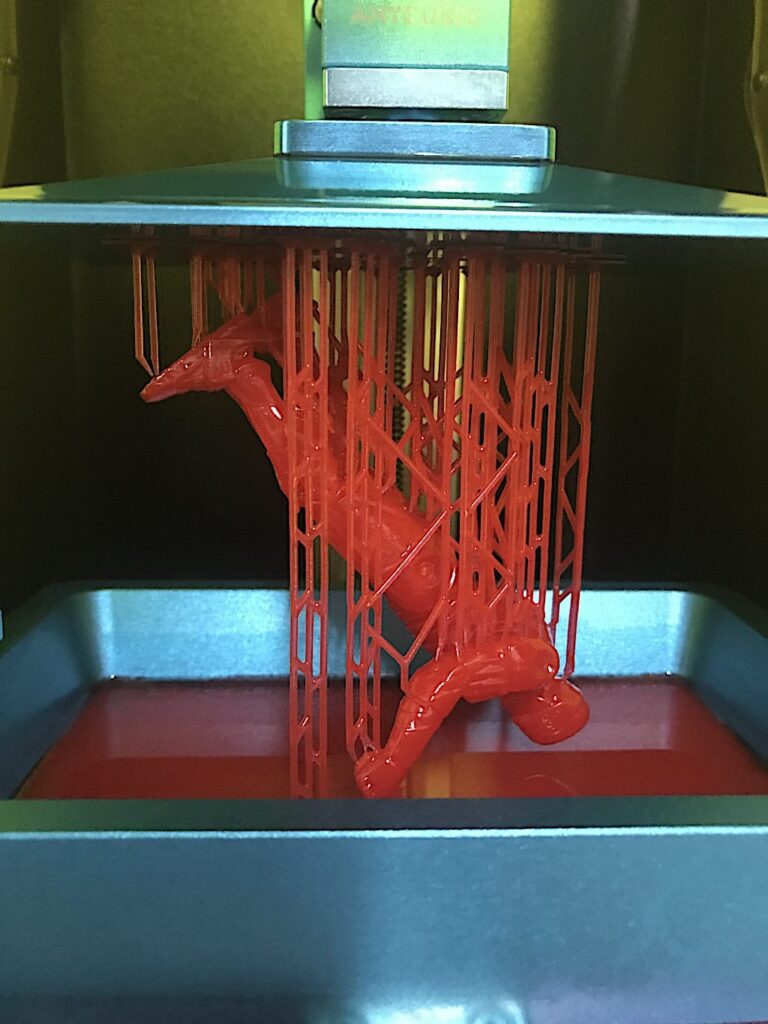
- 3D printing creators. If you sell printed figurines, miniatures or collectibles — on Etsy, at conventions, or through your own storefront — a bad detail used to mean a wasted print or hours of cleanup. Fixing a prop with a prompt, then sending the result straight to your slicer, compresses the iteration loop to minutes.
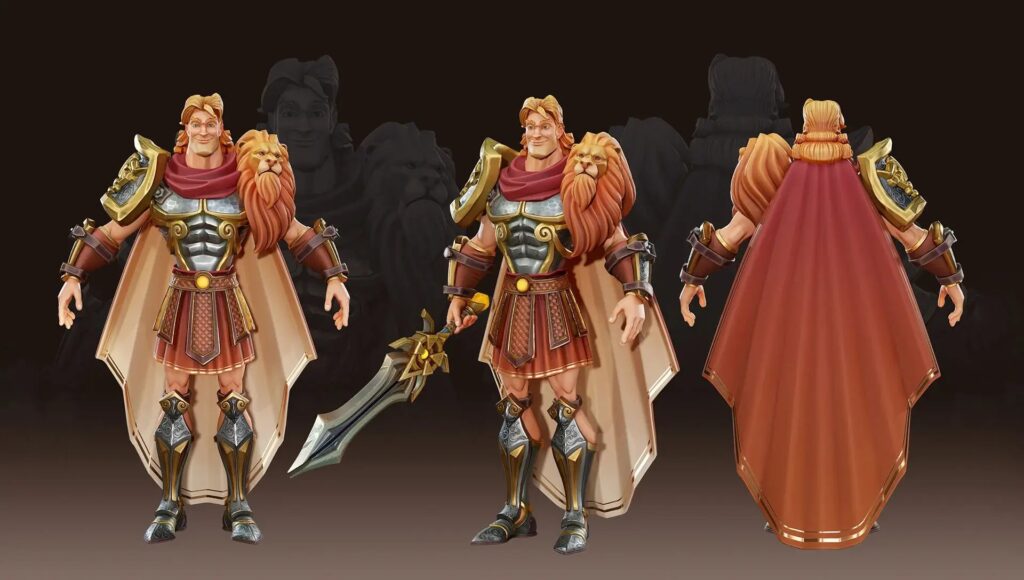
- Indie game developers. Character variants are the bread and butter of small games: the same base character with different armour, weapons or accessories. Meshy Edit’s select-and-prompt flow is purpose-built for that kind of roster work — swap the helmet, keep the body, ship the variant. For developers also exploring AI-made games, our Google Playground AI game maker guide covers a complementary tool.
- Product and prop designers. Rapid concept iteration on a single design detail — a handle shape, a mounting bracket, a decorative element — without rebuilding the asset each time.
- Beginners who will never learn Blender. Blender is free and enormously capable, but its learning curve is a cliff. Meshy Edit gives non-artists a way to fix the one thing that bugs them without a three-month tutorial arc.

Meshy Edit Limitations: An Honest Look
No honest review skips the weak points, and Meshy Edit has several worth knowing before you spend credits:
- Meshy-native only. Uploaded models are not supported, so Meshy Edit is not a general-purpose 3D editor — it is an add-on to Meshy’s own generation stack.
- Textures get stripped during editing. Textured models are converted to their untextured version for the edit. Plan on re-applying or re-texturing after a change.
- Low-poly and Ultra 4K are excluded for now. If your pipeline targets game-ready low-poly assets or maximum-fidelity 4K output, check the support boundaries before committing.
- AI output quality still varies. Targeted editing reduces regeneration gambling, but the edit itself is still AI-generated geometry — inspect the result, especially on complex joins between the edited region and the original mesh.
- The free tier is a taster, not a pipeline. Five edits a month is enough to evaluate the feature, not to run a store on.
None of these are dealbreakers for the feature’s intended audience, but they draw a clear line around what Meshy Edit is: a fast fixer inside the Meshy ecosystem, not a replacement for a full modelling package.
Meshy Edit Tips: Getting the Best Results
After looking at how the tool actually behaves, a few practical habits separate good edits from wasted credits:
- Describe the result, not the action. “A knight wearing a horned helmet” gives the model a clearer target than “change the helmet”. You are describing the patch of the model you want to exist, not the button you would press in Blender.
- Start with the Lasso, finish with the Brush. Loop the whole part quickly with the Lasso to grab its full mesh — front, sides and back — then paint with the Brush to tighten the edges. This two-step habit avoids the classic mistake of editing only the visible face of a part.
- Use reference images for style, not just shape. The five reference slots are most powerful when the change is aesthetic — a fabric pattern, a metallic finish, a specific accessory design — rather than something words already describe well.
- Budget credits like a print budget. With 20 credits per edit, batch your changes thoughtfully. Describe the clearest, most certain fix first, generate, inspect, then iterate. Random prompt-spraying burns the same credits as careful work but teaches you nothing.
- Inspect the seam. The junction between the edited region and the untouched mesh is where AI edits show their seams — check it from several angles in the viewer before you download or print.
- Remember failed edits are free. If a generation errors out, credits come back automatically and Retry preserves your whole setup. Do not let a technical failure eat your session.
One more workflow note: because each edit spawns a new model while keeping the original, you can chain small edits — fix the helmet, then fix the shield strap, then adjust the boots — building a revision history the way you would with save-as copies in a normal project.
Meshy Edit vs the Alternatives
Selective AI editing is a new enough idea that Meshy Edit does not have a direct like-for-like rival yet. But creators will weigh it against familiar options:
- Blender: free, full manual control, infinite ceiling — and a serious time cost. Meshy Edit wins on speed for simple, well-described changes; Blender wins whenever you need precision the AI cannot guess.
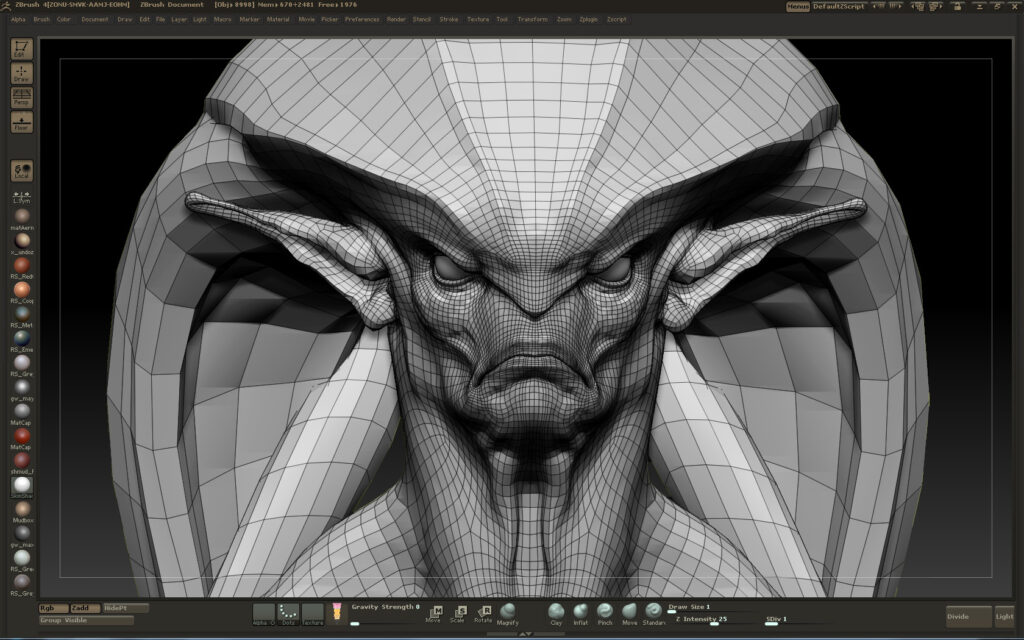
- ZBrush: the professional sculptor’s tool, superb for organic detail. It is also expensive and skill-gated. Meshy Edit is the casual-speed alternative, not the replacement.
- Tripo and Sculptly: rival AI 3D generators. Third-party cost comparisons put a standard textured model at roughly $0.60 on Meshy Pro versus about $0.17 on Tripo Pro and $0.13–$0.18 on Sculptly — so Meshy is the pricier generator of the three, and Meshy Edit’s 20-credit edit costs roughly as much as a full Meshy generation. The differentiator is capability, not price: selective prompt-based editing is Meshy’s unique selling point right now.
- Full regeneration: the old Meshy workflow of rolling the dice again. Meshy Edit is strictly better whenever the base model is worth keeping — which is most of the time.
Meshy Edit FAQ
Is Meshy Edit free to use?
Meshy Edit is available to all registered Meshy users, including free-plan accounts — but each edit costs 20 credits, and the free plan only includes 100 credits per month, so you get about five edits monthly before needing a paid tier.
How long does a Meshy Edit take?
About one minute per edit. The job runs in the background and you are notified when it is done.
Can Meshy Edit edit a 3D model I uploaded from Blender?
Not currently. Meshy Edit only supports high-poly models generated inside Meshy with Meshy 6 or Meshy 7.1. Uploaded models, low-poly models and Ultra 4K models are not supported yet.
What happens to my original model?
Nothing — the original is always kept. Every edit creates a new model, which you can then edit again, download or send straight to print.
What if my edit fails or looks wrong?
Failed edits refund their credits automatically, and the one-tap Retry button reloads your selection and description so you can rerun it instantly. For a bad-but-completed result, just re-edit the new model or adjust your description.
Can I send the edited model to my 3D printer?
Yes. Edited models can be downloaded or sent directly from Meshy to slicer software including Bambu Studio, Snapmaker, Flash Studio and xTool Studio.
Does Meshy Edit keep textures?
Textured models are automatically converted to their untextured version during editing. The geometry is what gets changed.
Final Verdict: Is Meshy Edit Worth It?
Meshy Edit is one of those features that sounds modest and turns out to be exactly what a workflow was missing. The all-or-nothing nature of AI 3D generation has been its most frustrating limitation: one wrong detail meant starting over. A prompt-based, region-aware fix that lands in about a minute — with the original preserved and failed attempts refunded — is a genuinely new capability, not a marketing repackaging.
The pricing is fair for what it is. Twenty credits an edit puts a targeted fix at roughly $0.40 on the Pro plan — trivial against the time it saves. The free tier’s five monthly edits are enough to test it properly before committing. The honest constraints are the ecosystem lock-in (Meshy-generated models only, for now) and texture handling, both of which the company will presumably address as the feature matures.
Our take: if you already generate 3D assets with Meshy — especially for 3D printing or indie game characters — Meshy Edit is an immediate, obvious upgrade to your workflow. If you work outside the Meshy ecosystem, it is a compelling reason to look inside it. For full details, see Meshy’s official announcement and the launch coverage reported by TipRanks. To sharpen up the reference images you feed it, an AI image upscaler is a handy companion.